Your game stutters. The frame rate dips in busy scenes. The menu lags. Before you resign yourself to a new graphics card — or worse, a whole new PC — know this: there's usually a lot of free performance hiding in your current setup.
Gaming performance isn't just about hardware. It's about how well your hardware is configured, what's running in the background, and how your system is tuned. This guide walks through the optimization playbook — practical, safe changes that can boost your frame rate (FPS) and smooth out stutters without spending a cent.
The playbook
Start with a baseline Update your graphics drivers Kill background hogs In-game settings that matter Windows tuning Free hardware winsStart with a baseline
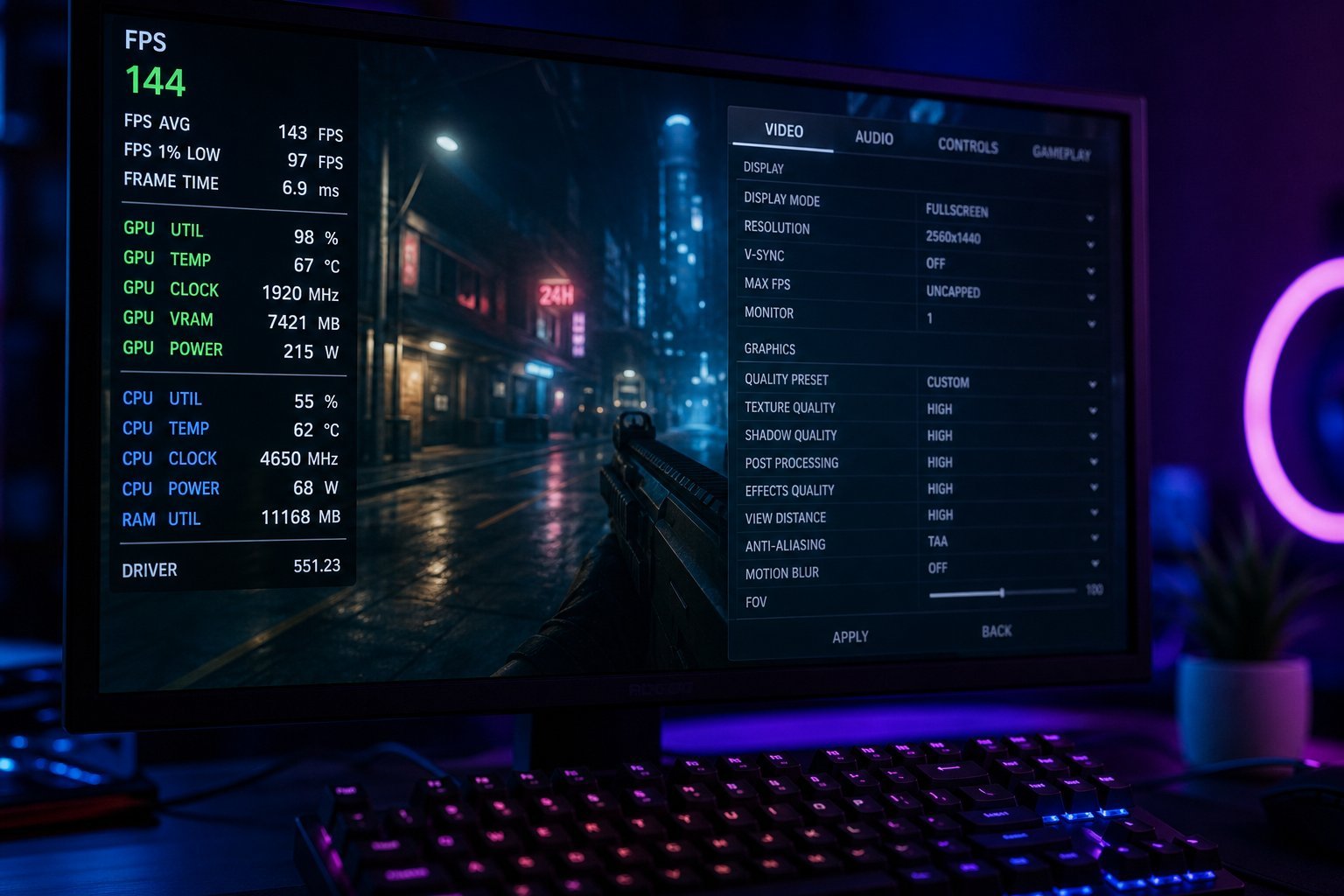
You can't tell if an optimization worked unless you know where you started. So before changing anything, measure your current performance:
Also note your monitor's refresh rate. If your monitor is 60Hz, anything above 60 FPS won't be visible — so your target is to hold your monitor's refresh rate comfortably, not to chase sky-high numbers.
💡 The target
You want your FPS to match your monitor's refresh rate (60, 144, etc.) and stay there without big dips. Smoothness matters more than peak numbers — a steady 60 FPS looks better than a jerky 90 FPS that stutters.
Update your graphics drivers
This is the single most impactful and most overlooked optimization. Your graphics card's drivers — the software that lets your games talk to the card — are updated regularly by the manufacturer with performance boosts and bug fixes specifically for new games.
Here's what to do:
- NVIDIA users: use the GeForce Experience app or download drivers from NVIDIA's site.
- AMD users: use the Adrenalin software or AMD's site.
- Intel integrated graphics: use Intel's driver tool.
Set drivers to update automatically, or check once a month. Outdated drivers are a common cause of poor performance and random crashes — and updating is free and takes minutes.
✨ The "clean install" trick
If a game performs unusually badly after an update, try a "clean install" of the driver (the installer offers this option). It clears out old driver remnants that can cause conflicts.
Kill background hogs
Here's a scenario that's painfully common: you launch a demanding game while a dozen other programs churn in the background — a web browser with 40 tabs, a video call, cloud sync, game launchers, updaters. All of it eats your CPU, RAM and sometimes your GPU. Result: stutters.
Before a gaming session, close the heavy stuff:
This alone can noticeably improve frame rates on systems with limited RAM or a mid-range CPU. Your system has a finite pool of resources; gaming wants as much as it can get.
In-game settings that matter
Not all graphics settings cost the same performance. Here's the important insight: some settings eat huge performance for little visual gain, while others are nearly free. Focus your tuning there.
| Setting | Impact | Advice |
|---|---|---|
| Resolution & scaling | Very high | Lower if struggling; use quality upscaling if available |
| Shadow quality | High | Drop from Ultra to High/Medium — big gain |
| Anti-aliasing | High | Lower tier is often fine |
| Reflections | High | Medium is usually fine |
| Textures | Moderate | Keep High if you have enough VRAM |
| Effects (bloom, particles) | Moderate | Medium looks nearly identical |
| Draw distance | Low-Moderate | High usually fine |
The pattern: lower shadow quality, anti-aliasing and reflections first — these give the biggest FPS boosts for the least visual loss. Most games even have a "Performance" or "Balanced" preset that applies sensible defaults. If you're unsure, start there and tweak.
✨ Enable quality upscaling
Modern tech like NVIDIA DLSS or AMD FSR renders the game at a lower resolution and upscales it, giving a big FPS boost with minimal visual loss. If your game supports it, turn it on — it's one of the best free performance gains available.
Windows tuning
A few Windows settings can help gaming performance:
- Enable Game Mode: Windows has a built-in Game Mode that prioritizes resources for games. Check it's on (Settings → Gaming → Game Mode).
- Turn on hardware-accelerated GPU scheduling: found in graphics settings; it can reduce latency on some systems.
- Use a "High Performance" power plan: on laptops especially, an efficient power plan throttles performance. Switch to High Performance or Balanced when gaming.
- Disable startup bloat: the fewer programs that auto-start, the more resources are free when you game.
- Keep Windows updated: updates include performance and compatibility fixes.
⚠️ Skip the risky "tweaks"
You'll find guides promising huge gains from editing the registry or disabling Windows services. These rarely help gaming and can break your system. Stick to the safe, official settings above. Real gains come from drivers, settings and background cleanup — not exotic registry hacks.
Free hardware wins
There are a couple of "hardware" wins that cost nothing and can meaningfully help:
- Clean your PC's cooling. Dust build-up causes overheating, and overheating causes the system to throttle — intentionally slow down to protect itself. If your fans are loud and your PC is warm, cleaning the dust and ensuring airflow can recover lost performance. (Power down and unplug before cleaning.)
- Add an SSD if you're on an HDD. If your games load slowly or stutter when streaming in new areas, moving them to an SSD is a big win. (See our SSD guide.)
Both are things people overlook, and both can genuinely recover performance your PC is silently losing.
📌 Bottom line
Before upgrading hardware, run the optimization playbook: measure your baseline, update your graphics drivers, close background programs, lower the expensive in-game settings (shadows, anti-aliasing, reflections), enable quality upscaling, and apply a few safe Windows tweaks. For most people, these free steps recover a surprising amount of smoothness — often delaying (or eliminating) the need for a hardware upgrade.