That sinking feeling when you click a program and wait… and wait… and the little circle just keeps spinning. Your laptop used to be snappy. Now it boots slowly, apps take forever to open, and switching between tabs feels like wading through honey.
Here's the thing most people don't realize: you almost certainly don't need a new laptop. A sluggish machine is usually the result of software problems that have piled up over months or years — and most of them are fixable in an afternoon, for free, without any technical skill.
This guide walks through 12 practical fixes, ordered from the ones with the biggest impact to the finishing touches. Grab your laptop, set aside an hour, and work through them. I'll bet you notice a real difference.
What we'll do
The big-impact fixes (do these first) Speed up boot time Free up disk space Tame startup programs Handle updates the smart way The upgrade that changes everything Good habits to stay fastThe big-impact fixes (do these first)
Two problems cause the vast majority of laptop slowness, and fixing them alone can transform a machine: a nearly-full storage drive and too many programs loading at startup. Let's tackle these head-on.
Free up disk space
A full hard drive is the silent killer of laptop performance. When your drive runs out of room, the operating system struggles to create the temporary files it needs, and everything grinds to a halt. A good rule of thumb: keep at least 15–20% of your drive free at all times.
Here's how to reclaim space safely:
✨ The 5% check
Open your file explorer or storage settings. If your drive shows less than 15% free, freeing up space should be your #1 priority — it often fixes "mysterious" slowness instantly.
Tame startup programs
Every time you turn on your laptop, a bunch of programs quietly start in the background — chat apps, updaters, cloud sync tools, media players. Each one seems harmless on its own, but together they can eat most of your memory and CPU before you've even opened a single app.
To see and control these on Windows:
On macOS, go to System Settings → General → Login Items and remove anything you don't need immediately when you log in.
A good question to ask about each program: "Do I need this the moment I turn on the laptop?" For most things — updaters, games, media players — the answer is no. You can always open them yourself when you actually want them.
Speed up boot time
If your laptop takes forever to become usable after you press the power button, the two fixes above are your best bet — startup programs and a full drive are the usual culprits. But there are a couple more things to check.
If you're on a modern Windows laptop, make sure Fast Startup is enabled (it usually is by default). If you never shut down, only sleep, a full shutdown-and-restart once in a while clears out memory issues.
Also, check if your laptop is actually off when you think it's off. If your "shutdown" is really a hybrid sleep, the system is doing background work. A clean restart every few days keeps things fresh.
Handle updates the smart way
Here's a common trap: people either let updates install at the worst possible time (freezing the machine mid-work) or they keep postponing them until the system becomes a mess. The smart approach is to schedule updates.
- Windows: set "active hours" so updates install overnight while you sleep, not while you're working.
- macOS: enable automatic updates for overnight installation.
- Apps: let your key apps update automatically so you're not running slow, outdated versions with bugs.
Updates don't just add features — they fix performance bugs and security holes. A machine that's been running the same outdated version for two years is genuinely slower and more vulnerable.
⚠️ Don't ignore security updates
Postponing updates forever isn't just a performance issue — it's a security risk. Old software has known vulnerabilities that hackers exploit. Schedule them, don't avoid them.
The upgrade that changes everything
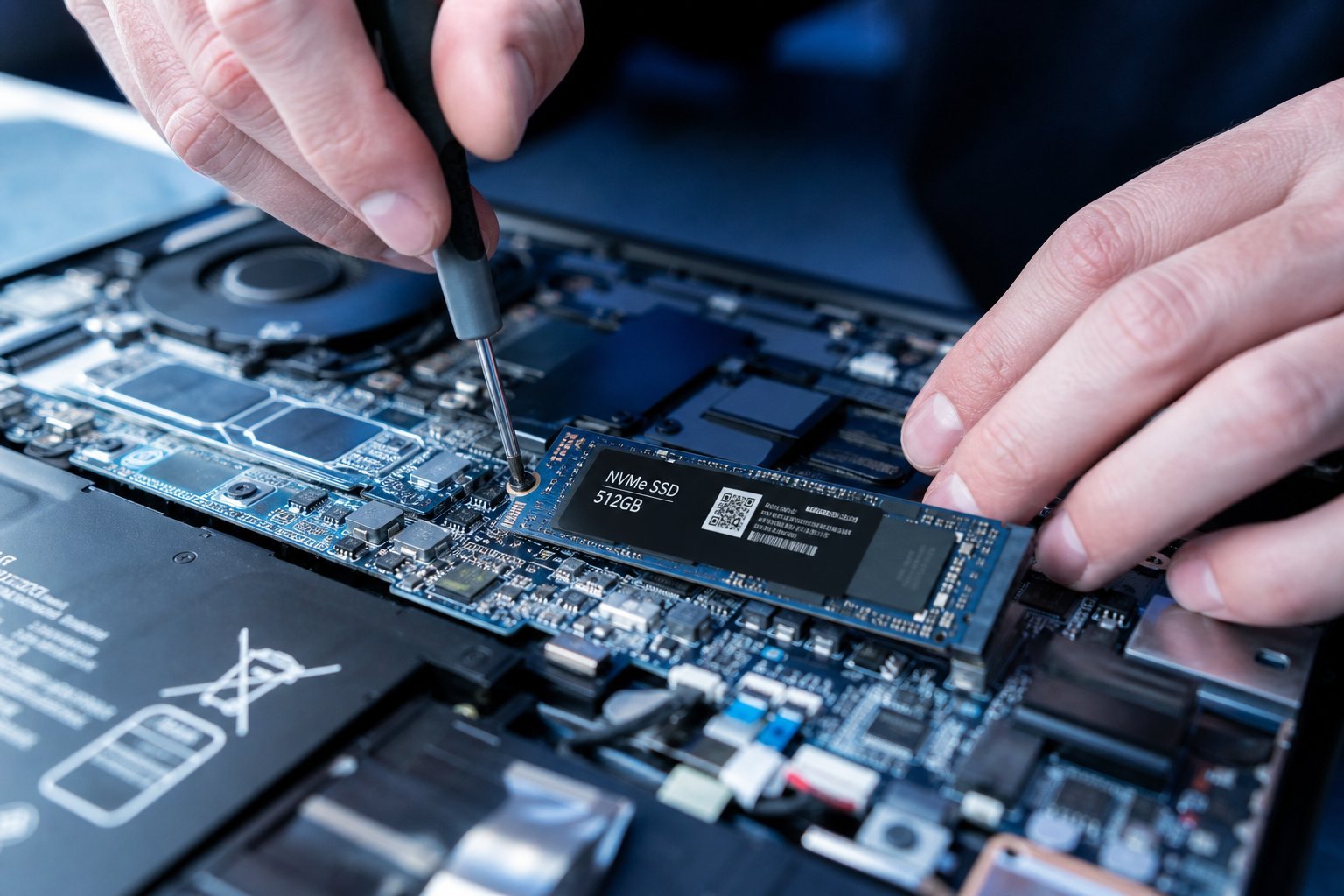
If you've done the software fixes and your laptop is still slow, there's one hardware upgrade that produces a more dramatic improvement than anything else: swapping a traditional hard drive for an SSD (solid-state drive).
Here's the deal in plain terms. An old-style hard drive (HDD) uses a spinning metal disc with a moving read head — physical, slow, delicate. An SSD has no moving parts and reads data electronically, which makes it many times faster.
Boot times can drop from two minutes to fifteen seconds. Apps open almost instantly. This one change can make a five-year-old laptop feel new. And here's the good news: SSDs are now very affordable, and the swap is one of the simplest hardware upgrades a technician can do. If you're not comfortable opening your laptop, any local repair shop can install one for a reasonable fee.
Before upgrading, back up your files — a professional will typically clone your old drive onto the new one so you keep everything.
💡 Is it worth it?
If your laptop is otherwise healthy (decent processor, enough RAM) but slow, an SSD is the single best "new life" investment you can make — often far cheaper than a new laptop and dramatically more effective than more software tinkering.
Good habits to stay fast
Once you've got your laptop running well, keep it that way with a few simple habits:
- Restart regularly. A clean reboot clears out memory leaks and stale processes. Aim for at least once a week.
- Keep 15–20% of your drive free. Make cleaning up a monthly ritual.
- Don't install junk. Be selective about what you download, and uninstall what you don't use.
- Run a yearly tune-up. Once a year, go through your apps, files and startup items to declutter.
- Keep it cool and clean. Dust in the vents causes overheating, and overheating causes throttling — a fan that's clearly working hard means it's time to clean the vents.
✨ The 10-minute weekly reset
Every Friday, restart your laptop, clear your browser cache, and delete anything you downloaded that week but didn't need. Ten minutes a week prevents the slow build-up that leads to a "broken" laptop.
📌 Bottom line
Most slow laptops aren't dying — they're overloaded. Free up disk space, tame your startup programs, schedule updates, and adopt a few good habits. If it's still slow, an SSD upgrade is the modern way to give it a second life. Try the free fixes first; you might be surprised how much speed you get back for nothing at all.