Your computer feels slow when you have too much open — lots of tabs, multiple apps, everything grinding. We've explained that RAM is your computer's working memory. If you're running out, the best fix is often to add more RAM — one of the simplest, most affordable upgrades there is.
This guide walks you through whether you need more RAM, how to check, and how to upgrade it.
What we'll cover
Do you need more RAM? Check your RAM usage Compatibility & choosing RAM Installing the RAMDo you need more RAM?
Here are the signs that more RAM would help:
If these sound familiar, more RAM is likely the fix. It's especially worth it if you're on 8 GB and finding it tight — going to 16 GB is a common, effective upgrade.
Check your RAM usage
Confirm the problem before buying:
Watch your RAM usage while working. If it's consistently near capacity, upgrading is worthwhile. If not, don't waste the money.
Compatibility & choosing RAM
RAM isn't universal — you need the right kind. Key checks:
⚠️ Match the RAM type
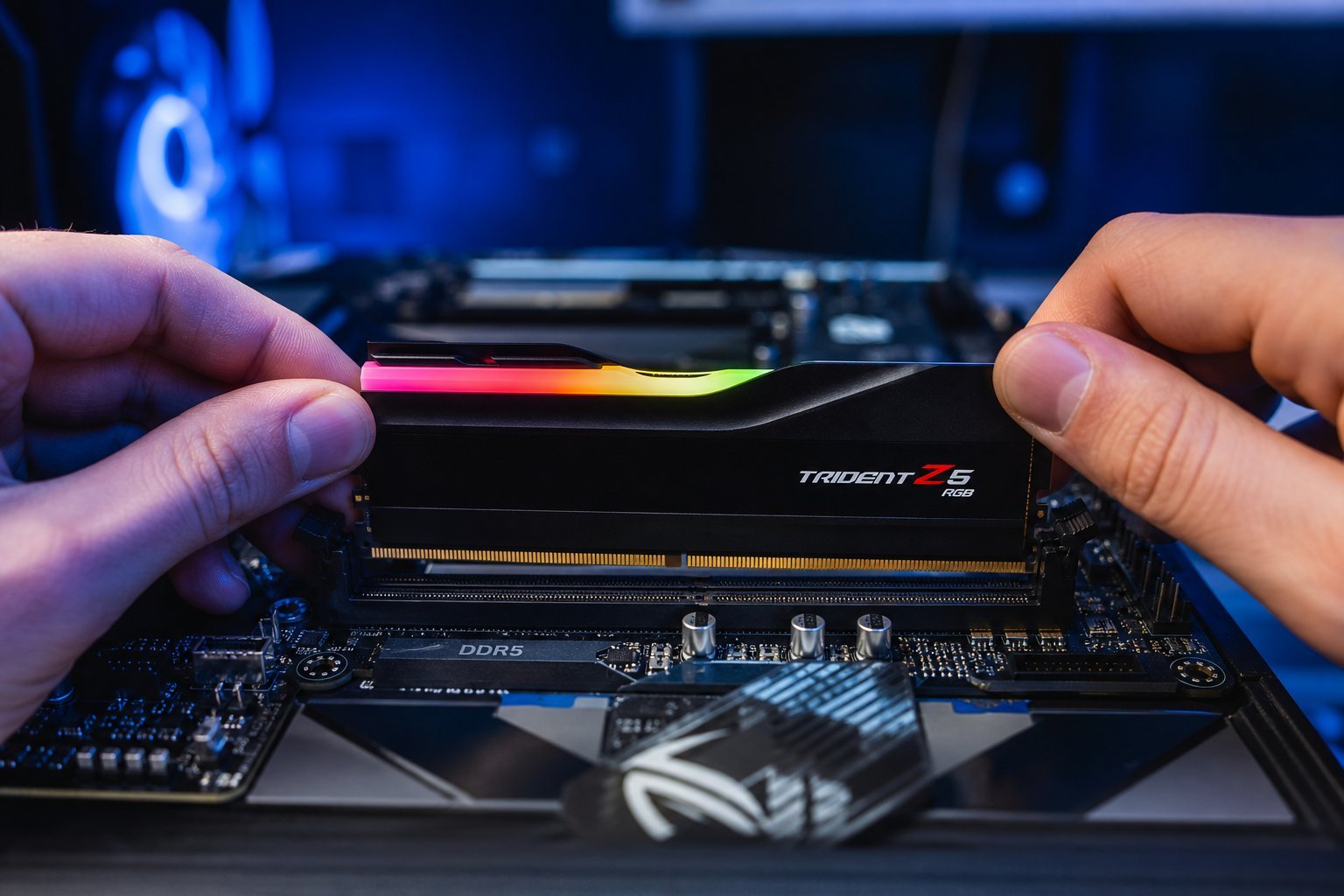
RAM must match your system: DDR4 vs DDR5 (type), the correct speed, and the correct form factor (DIMM for desktop, SO-DIMM for laptop). Buying the wrong RAM wastes money and won't work. Look up your device's specs or use a compatibility checker before buying.
Installing the RAM
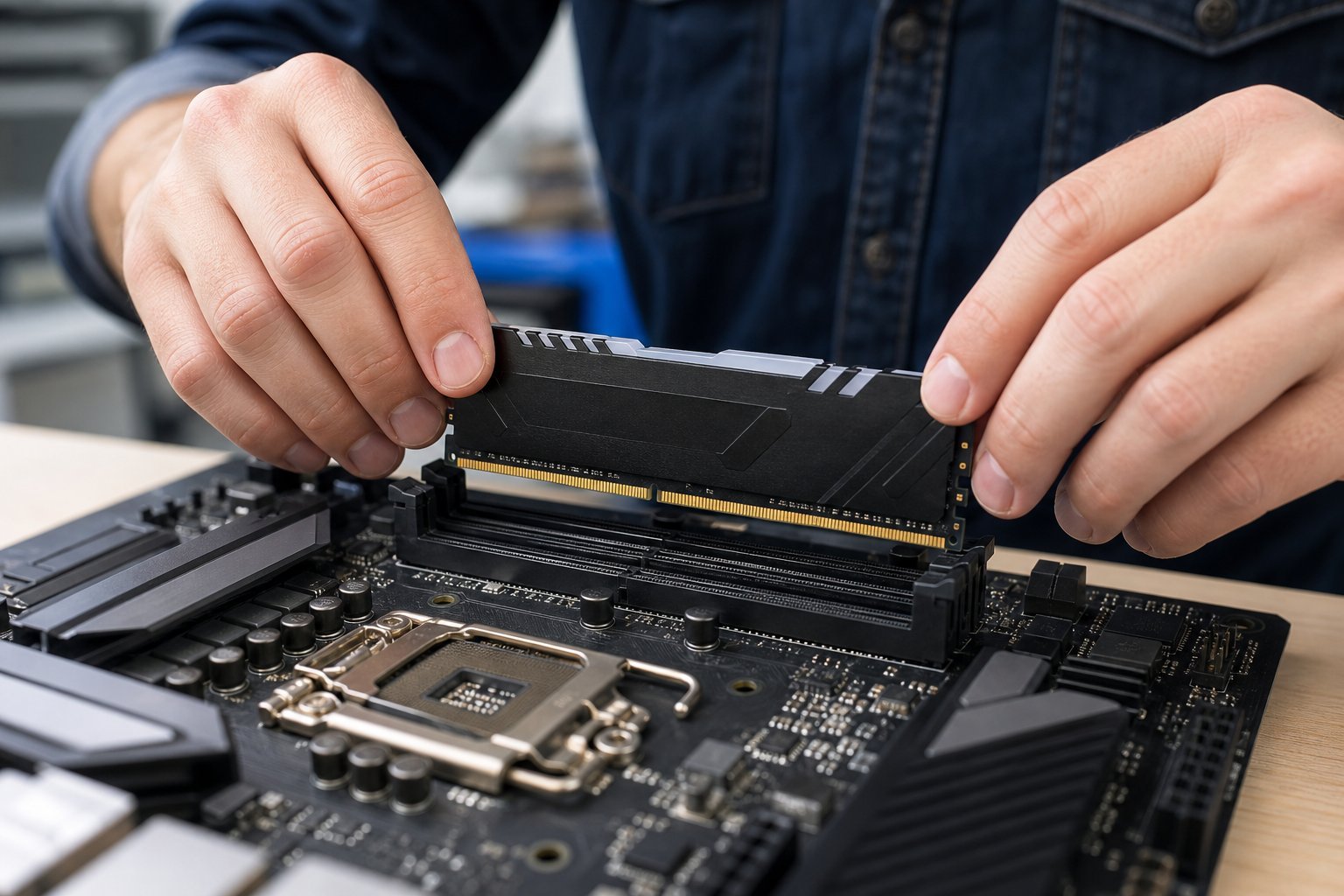
Installing RAM is one of the easier hardware upgrades. Here's the process:
✨ RAM is often the easiest upgrade
Adding RAM is one of the simplest and most affordable performance upgrades, especially for a computer that struggles with multitasking. If you're not comfortable opening your device, a local repair shop can install it for a modest fee — still far cheaper than a new computer.
RAM installation is straightforward for desktops and some laptops. If your laptop's RAM is soldered (non-upgradeable), you can't add more — that's why it's worth buying enough RAM upfront (see our RAM guide).
📌 Bottom line
If your computer slows with many apps open, more RAM is likely the fix. Confirm it by watching RAM usage under load. Choose compatible RAM — the right type (DDR4/DDR5), speed and form factor for your system. Install it by powering down, grounding yourself, and pressing the stick into the slot until it clicks. Adding RAM is one of the simplest, most affordable upgrades for a multitasking-heavy computer — and often transforms its performance.