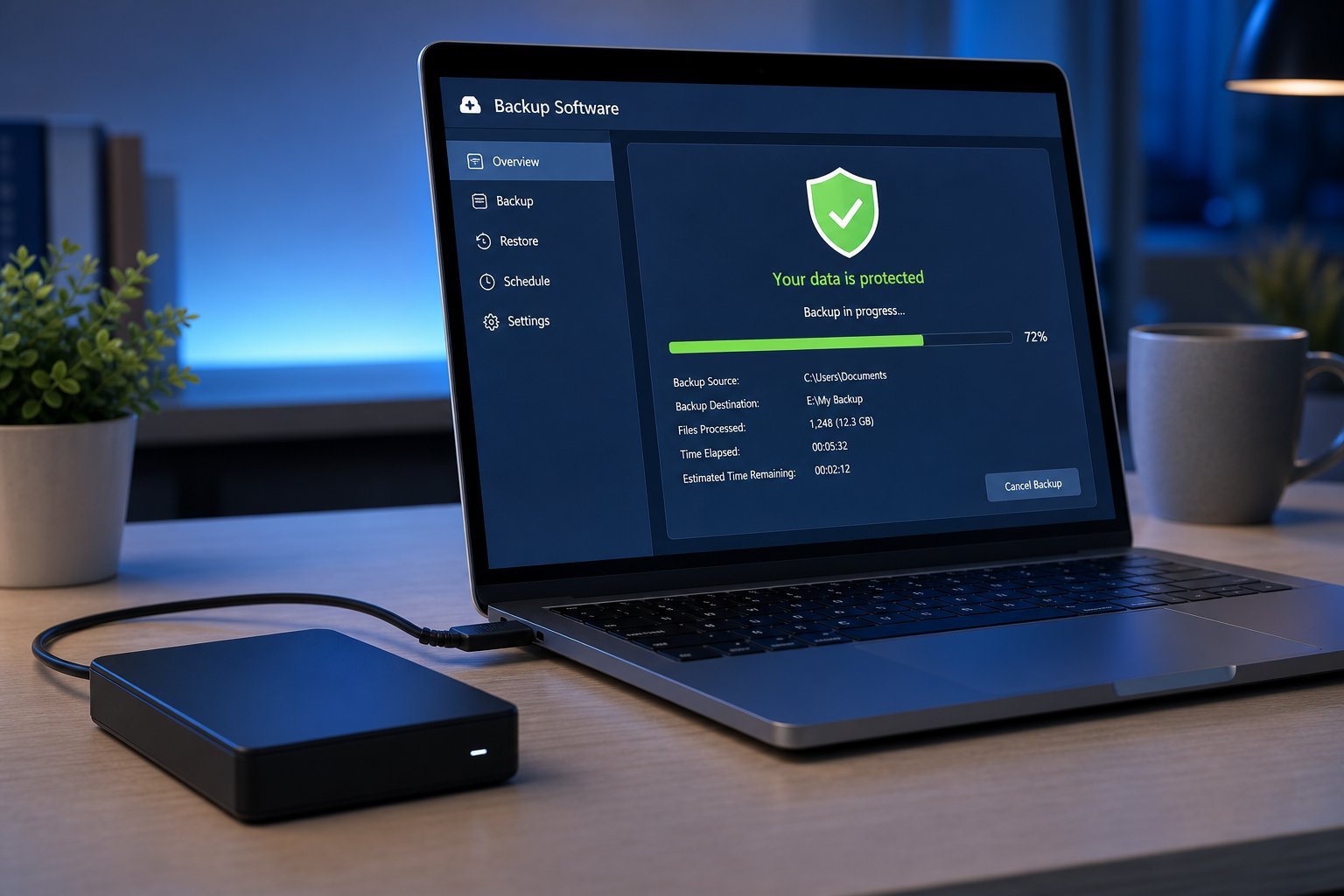
We've talked about the importance of backing up your data (see our 3-2-1 backup guide). One of the best ways to do that is a cloud backup service — software that automatically backs up your files to the cloud in the background. Unlike cloud sync (which just mirrors files), a real backup service keeps copies you can restore.
This guide explains what cloud backup services do, the difference between them and cloud storage, and how to choose one.
What a cloud backup service does
A cloud backup service automatically backs up your computer's files to secure servers, continuously or on a schedule. If your computer fails, is lost or is hit by ransomware, you can restore your files from the backup.
Key features:
- Automatic. Runs in the background without you thinking about it.
- Keeps history. It keeps old versions of files, so you can recover from accidental edits or deletions.
- Continuous or scheduled. Backs up as you work or at set times.
- Full restore. If your computer dies, you can restore your entire system or just the files you need.
The purpose is protection — not convenience. A backup service is your safety net if something goes wrong.
Backup service vs cloud storage
This is a crucial distinction. Cloud backup and cloud storage (like Google Drive or Dropbox) are different tools:
| Cloud storage (sync) | Cloud backup service | |
|---|---|---|
| Primary purpose | Access & share files | Protect & restore |
| How it works | Mirrors files across devices | Keeps backup copies & history |
| Ransomware protection | Can be affected | Keeps recoverable copies |
| Version history | Limited | Full |
💡 The key difference
Cloud storage (like Google Drive) is for access and sharing — it syncs your files. A cloud backup service (like Backblaze) is for protection — it keeps recoverable copies with history. They're not the same (see our sync vs backup guide). For real protection, you want a backup service, not just storage.
How to choose one
Here's how to pick a cloud backup service:
✨ Pair it with an external drive
For the strongest protection (the 3-2-1 rule), pair a cloud backup service with a local external drive backup. The cloud protects against fire/theft/ransomware; the external drive gives you fast, offline recovery. Together, they cover almost every scenario.
📌 Bottom line
A cloud backup service automatically protects your files by keeping recoverable copies with history — different from cloud storage, which just syncs files for access. Choose one that fits your needs: automatic, with version history, reasonable pricing, easy restore, and good security. Pair it with a local external drive for full protection. A good cloud backup service is your safety net, protecting your data from failure, loss and ransomware.