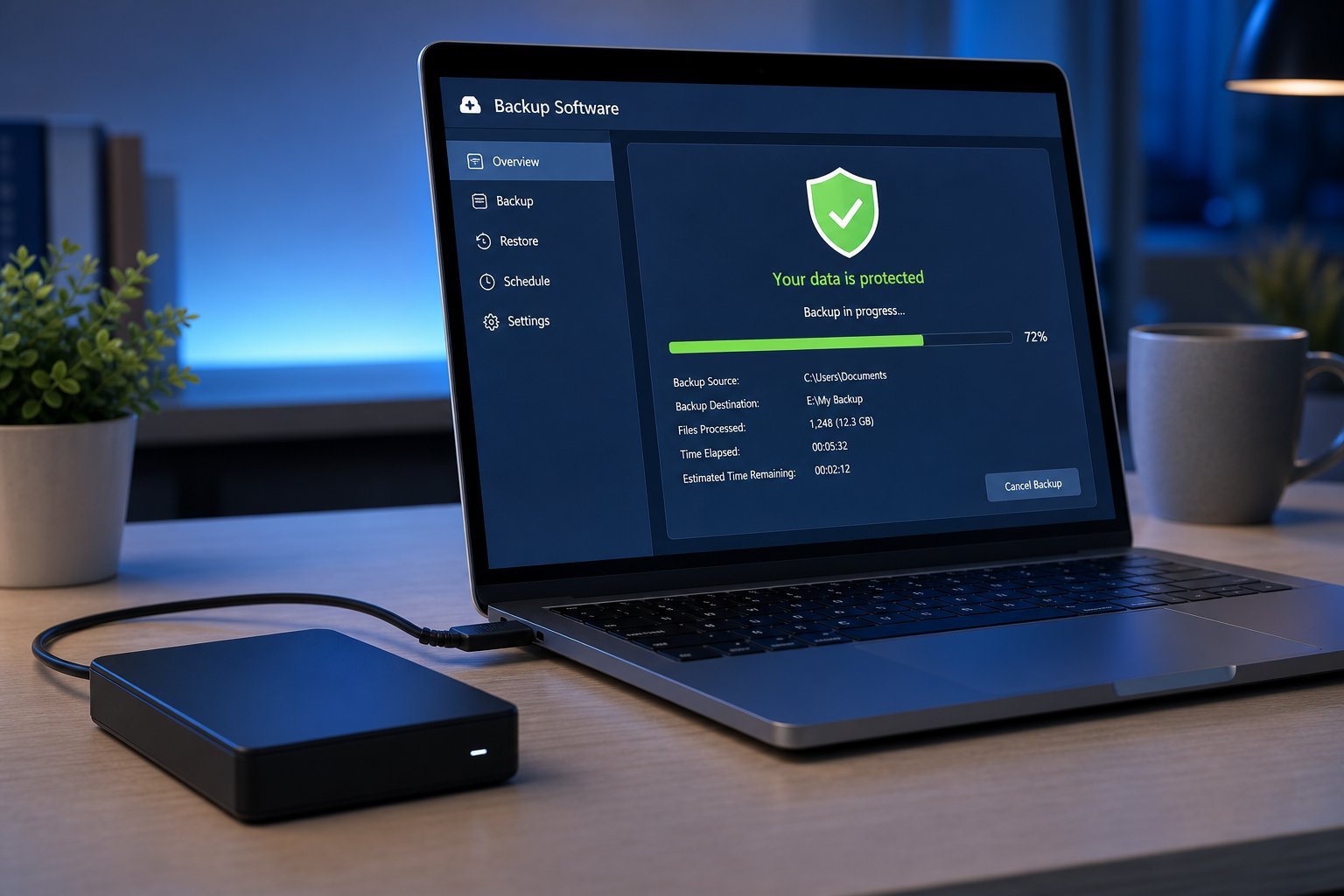
Here's a common and risky misunderstanding: many people think their files are "backed up" because they're in a cloud sync service like Google Drive, iCloud or OneDrive. But syncing and backing up are not the same thing — and confusing them can cost you your data.
This guide explains the difference between backup and sync, why it matters, and how to make sure your files are genuinely protected.
What we'll cover
Sync vs backup: the difference Why the difference matters How to actually protect your filesSync vs backup: the difference
Let's be clear on what each does:
- Sync keeps files the same across your devices. If you edit a file on your laptop, the change appears on your phone. It's about convenience and access, not protection.
- Backup keeps a copy of your files that you can restore if something goes wrong. It's about protection and recovery.
The key difference: sync mirrors changes; backup preserves history. With sync, if you accidentally delete a file (or a ransomware attack deletes/encrypts it), that change syncs everywhere — deleting it everywhere. A backup, by contrast, keeps a version you can restore.
Why the difference matters
Here's where confusing them gets dangerous:
⚠️ Sync is NOT backup
Relying on cloud sync as your only "backup" is risky. If you delete a file, get hit by ransomware, or a sync error occurs, the damage can spread to every device and every copy. Sync is for convenience; a separate backup is for protection.
This is why we recommend a proper backup strategy (see our 3-2-1 backup guide) that includes an actual backup — not just sync.
How to actually protect your files
Here's how to make sure your files are genuinely backed up, not just synced:
✨ The one-question test
Ask yourself: "If I deleted an important file right now, could I restore it?" If your only answer is "it's in the cloud," you may be relying on sync, not backup. A real backup gives you a clear "yes, here's where it's backed up and how I restore it."
📌 Bottom line
Sync keeps files the same across devices — it's for convenience and access. Backup keeps a recoverable copy — it's for protection. The two are not the same, and relying on sync alone is risky: a mistake, ransomware or a sync error can delete or corrupt files everywhere. Use cloud sync for convenience, but add a real backup (cloud backup service and/or an external drive) following the 3-2-1 rule. Ask yourself whether you could truly restore a deleted file — that's the real test of a backup.