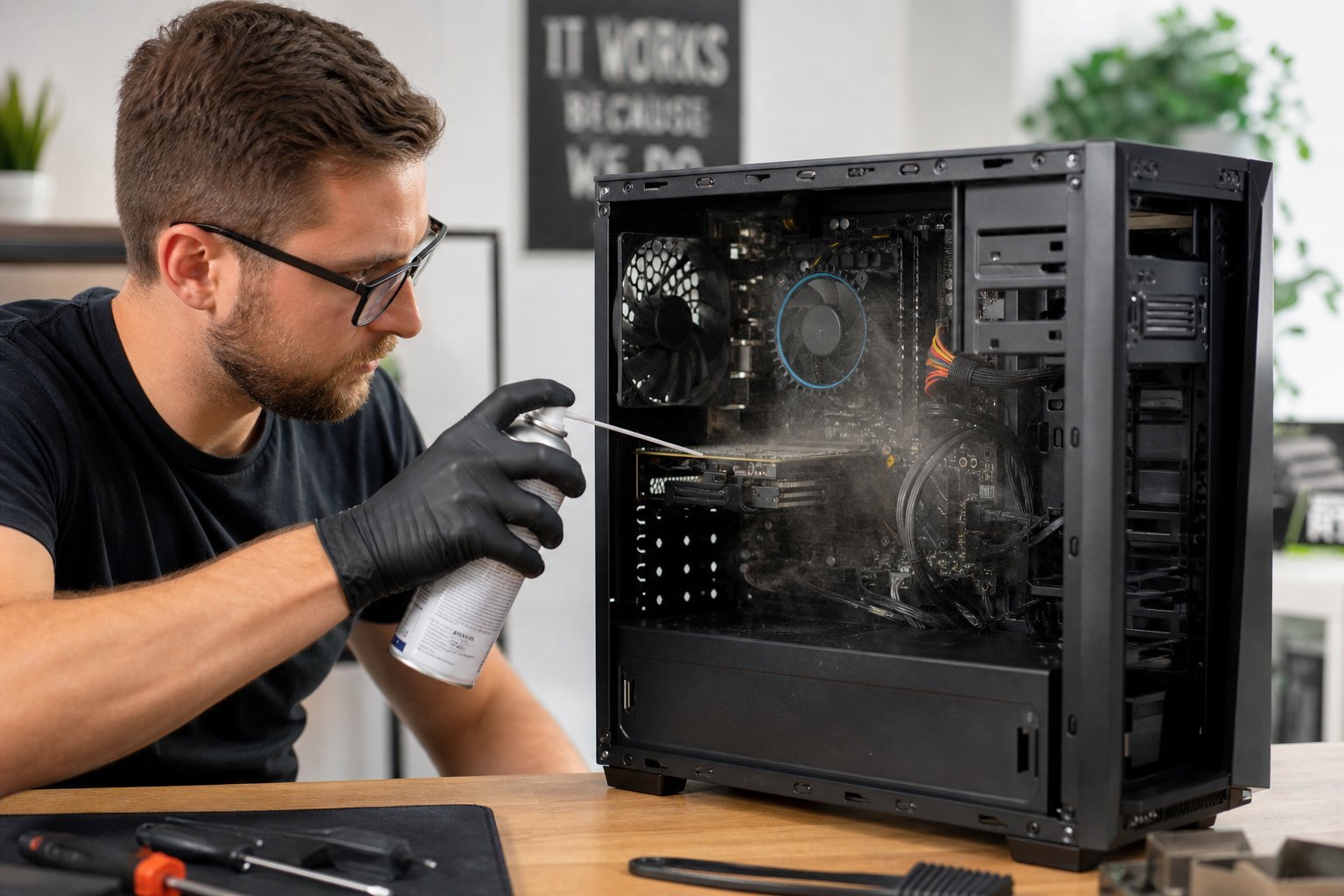
At the end of the day, what do you do with your computer — shut it down, or let it sleep? Everyone has an opinion, and there's a lot of conflicting advice. Some say always shut down; others say sleep is fine. So which is right?
The honest answer: it depends on how you use your computer. This guide explains the difference between shutdown, sleep and restart, and when each makes sense.
What we'll cover
The options: shutdown, sleep, restart When to shut down vs sleep Why restart mattersThe options: shutdown, sleep, restart
Let's clarify what each option actually does:
- Shut down. Turns the computer off completely — no power to components. Fully starts up next time.
- Sleep. Puts the computer into a low-power state, keeping your work in memory so you can resume instantly. Uses a little power.
- Restart. Shuts down and starts up again, clearing memory and reloading the operating system. (On Windows, modern "restart" does a cleaner reboot than "shutdown.")
The key difference: sleep is fast and convenient but keeps the system state; shutdown and restart give a fresh, clean start.
When to shut down vs sleep
Here's the practical guidance based on how you use your computer:
💡 The simple rule
Use sleep for short breaks and convenience, shut down when you won't use it for a long time and want a fresh start, and restart weekly to keep it running smoothly. There's no single "right" choice — match it to your habits.
Why restart matters
This is the most important point: restarting regularly is good for your computer. Here's why:
- It clears memory. Over time, programs leave memory leaks and background processes that slow things down. A restart clears them.
- It applies updates. Many updates need a restart to take effect (see our updates guide).
- It fixes glitches. A quick restart resolves many small problems and freezes.
- It's the first troubleshooting step. When something acts up, restarting often fixes it.
If you only ever sleep your computer and never restart, it can gradually slow down and develop glitches. A weekly restart prevents that.
✨ The weekly restart habit
Make it a habit to restart your computer once a week — say every Friday. It clears memory, applies updates and prevents the slow, glitchy build-up that comes from weeks without a fresh start. It takes two minutes and keeps your computer running smoothly.
📌 Bottom line
Sleep is great for short breaks and convenience, shutdown gives a fresh start when you won't use it for a while, and restart clears memory and applies updates. There's no single right answer — match it to your habits. The key is to restart regularly (at least weekly) to keep your computer fast and glitch-free. A little awareness of these options keeps your computer healthy for years.