Let me guess what happens when you log into a website you haven't visited in a while. You try one password. It doesn't work. You try a variation with a capital letter and a number. Maybe a "!" at the end. Then you hit "forgot password" and reset it — usually to the same password you always use.
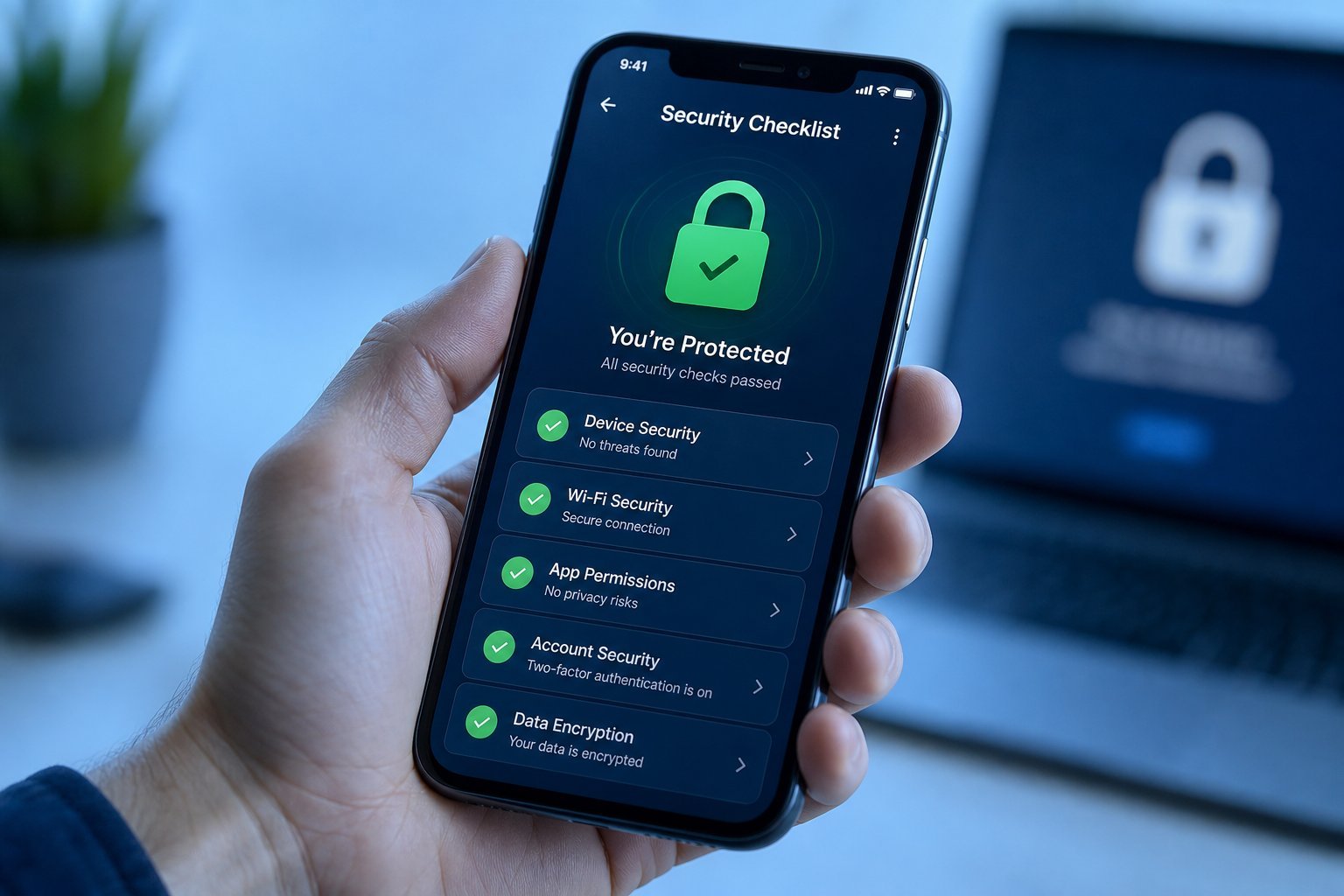
If that sounds familiar, you're in the majority. And here's the uncomfortable truth about that habit: it's the single biggest security risk most people face. A password manager is the practical fix, and once you use one, you'll wonder how you ever managed without it.
This guide explains what password managers do, why they're safe (yes, really), and how to set one up in a way that feels easy, not overwhelming.
What we'll cover
The password problem What a password manager does Is it safe to trust one app with everything? Choosing a password manager How to set one up without stress Good habits with a password managerThe password problem
Here's why the "reuse one password" approach is so dangerous. Data breaches happen constantly — a website gets hacked, and lists of email addresses and passwords leak. Cybercriminals then run those leaked passwords against every other popular site, an attack called credential stuffing.
So when you use the same password on a random forum and your bank, a breach of the forum hands criminals the keys to your bank. You didn't do anything wrong in that moment — you just reused a password, which is what nearly everyone does.
The math is simple: you need a unique password for every account, and humans can't remember hundreds of strong passwords. That's the entire problem a password manager exists to solve.
💡 The core issue
Reused passwords turn one breach into access to many accounts. Unique passwords everywhere is the fix — but that's impossible without a tool. Hence, the password manager.
What a password manager does
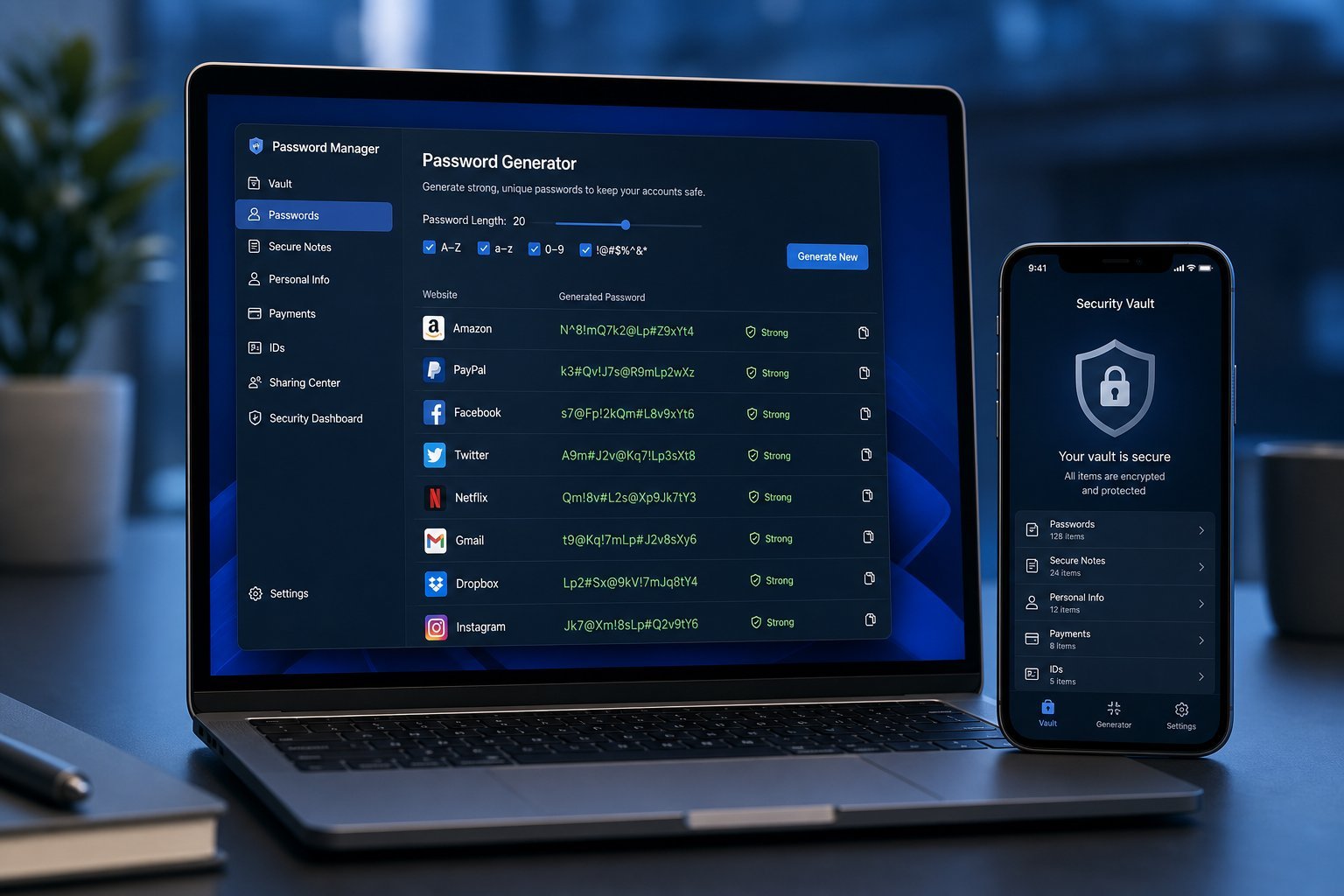
A password manager is a secure digital vault that stores all your passwords in one place, protected by a single master password. Once you're in, it handles the rest:
- Stores all your passwords securely in one place.
- Generates strong, random passwords for new accounts — so you never have to invent one.
- Fills in passwords automatically when you visit sites, so you don't even have to type them.
- Syncs across your devices — phone, laptop, tablet — so your passwords are wherever you are.
- Warns you about weak or reused passwords so you know what to fix.
The result: you only remember one strong password (the master password), and everything else is unique, strong and automatic.
Is it safe to trust one app with everything?
This is the question everyone asks, and it deserves a straight answer. Yes — a good password manager is safe, and safer than your current habits. Here's why:
- Encryption: Your passwords are encrypted with a key derived from your master password. The company that makes the manager cannot read your passwords — only you can. Even if their servers were breached, the data is unreadable.
- No plaintext storage: Unlike writing passwords in a notes app or a spreadsheet (which many people do), a password manager encrypts everything properly.
- Reputable providers like Bitwarden, 1Password and NordPass have excellent security track records and independent audits.
- Local protection: Your vault is locked when you're not using it, and unlocked only with your master password (and often your fingerprint/Face ID).
The one risk is real but manageable: losing or forgetting your master password. That's why setting up a recovery method matters (more below). Overall, a password manager replaces the far riskier habits of reusing and weak passwords.
⚠️ Protect your master password
Your master password unlocks everything. Make it strong and memorable, and set up the recovery options (like a backup key) when you first sign up. Without it, you could be locked out — so treat it seriously.
Choosing a password manager
The good news: you have excellent options, including free ones. Here's a quick rundown:
| Manager | Cost | Notes |
|---|---|---|
| Bitwarden | Free tier | Open-source, secure, great value |
| 1Password | Paid | Polished, user-friendly, family plans |
| NordPass | Free/paid | Simple and clean |
| Dashlane | Free/paid | User-friendly with good extras |
| Built-in options | Free | Google Password Manager, iCloud Keychain, Edge/Chrome |
For most beginners, Bitwarden's free tier or a built-in option (Google Password Manager or Apple's iCloud Keychain) is a perfect starting point — no cost, no commitment, real security. You can always switch later.
How to set one up without stress
Setting up a password manager feels like a big job, but you don't have to do it all at once. Here's a low-stress approach:
The secret is gradual adoption. You don't need to change every password on day one. Start saving passwords as you log in, fix your most important accounts, and let the rest happen naturally over a few weeks.
Good habits with a password manager
Once you're set up, a few habits keep everything running smoothly and safely:
- Always use the generated, unique password for new accounts — that's the point.
- Let it autofill. Typing passwords manually is slower and riskier (keyloggers).
- Check its security report occasionally to find weak or reused passwords you can fix.
- Enable two-factor authentication on the manager itself for extra protection.
- Keep a recovery method updated in case you forget your master password.
📌 Bottom line
A password manager stores your passwords securely, generates strong unique ones, and fills them in automatically — so you only remember one master password. It's safe (your data is encrypted), it's the realistic fix for the #1 security mistake (password reuse), and you can start for free and adopt it gradually. Set one up today; your future self will thank you.