๐Ÿ HighTechBee โ€” practical tech help, in plain English.
โœ๏ธ Write for us ๐Ÿ“ฉ Contact โ˜€๏ธ โ— Updated daily

Photo Backup & Organization: Never Lose a Memory Again

AJ
Amara JohnsonSmartphone expert ยท HighTechBee Editorial
Photo Backup & Organization: Never Lose a Memory Again

Your phone's photo gallery is a living scrapbook of your life โ€” family moments, trips, funny screenshots, and thousands of everyday shots. But most people's photo libraries are a mess: tens of thousands of photos, no backup, duplicates everywhere, and a scramble to find that one important picture.

The good news: with a little setup and a few habits, you can back up, organize and actually find your photos. This guide walks you through it.

Back up your photos

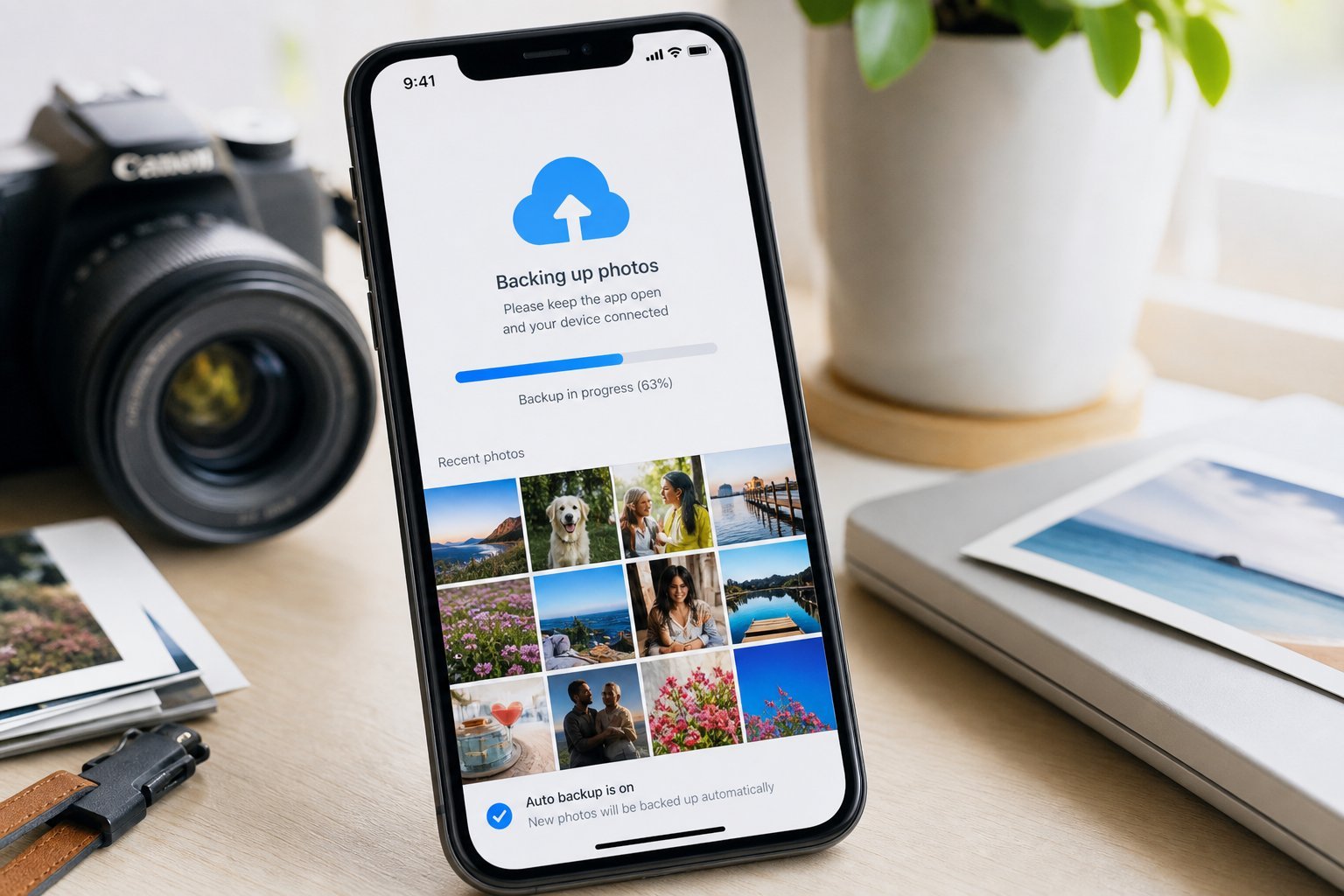
Here's the uncomfortable truth: photos stored only on your phone are one accident away from being lost forever. A lost phone, a dead device, or water damage can wipe out years of memories. The fix is automatic backup.

  • Enable cloud photo backup. On Android, that's Google Photos; on iPhone, iCloud Photos. Turn it on and let it back up automatically.
  • Confirm it's working. Check the backup status and that it's complete โ€” a half-finished backup isn't a real backup.
  • Consider a second copy. For your most precious photos, an extra backup (a second cloud service or an external drive) adds protection (see our backup guide).
  • Automatic backup is the single most important thing. Once it's on, your photos are safe even if your phone is lost. Don't skip the step of confirming it actually completed.

    Organize & declutter

    Backed up is step one; organized is step two. Here's how to tame a messy library:

  • Let search do the work. Modern photo apps search by people, places and objects โ€” you often don't need to sort manually.
  • Use albums for the important things. Create albums for trips, family milestones and events you'll want to revisit.
  • Delete the junk. Screenshots, blurry shots and duplicates you'll never want โ€” delete them (or move them to a "delete later" album).
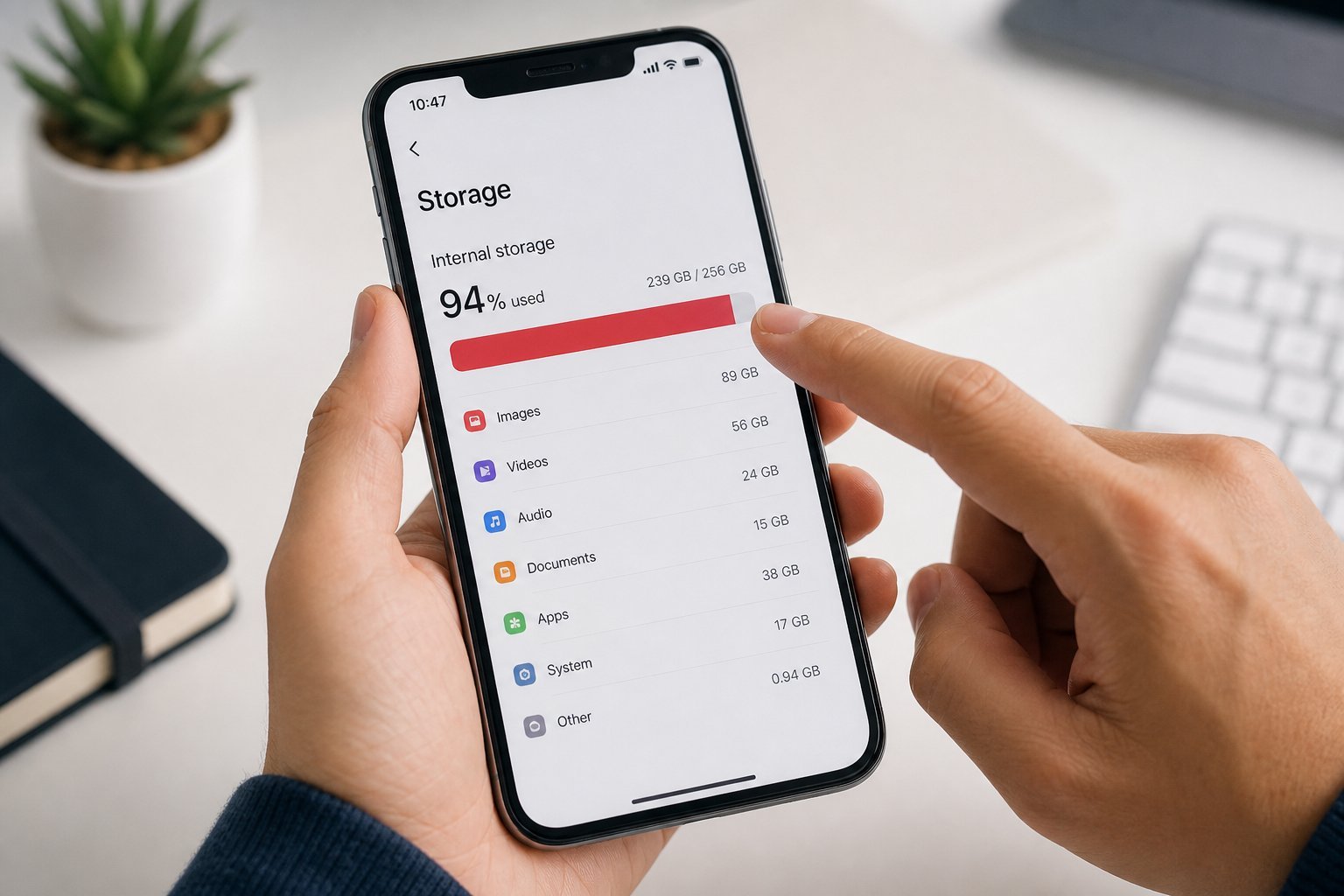
  • Enable "free up space" after backing up, to remove backed-up photos from your phone and reclaim storage (see our storage guide).
  • You don't need to organize every photo โ€” modern search handles that. Just create albums for what matters and clean out the obvious junk periodically.

    Find any photo fast

    This is where photo apps really shine. Instead of scrolling through thousands of images, use the power of search:

  • Search by person. Face recognition groups photos of the same people โ€” search a name to find them all.
  • Search by place. Find photos from a specific trip or location.
  • Search by object or activity. "Beach," "dog," "birthday" โ€” modern photo apps understand these.
  • Use date filters. "Photos from last March" narrows things down fast.
  • โœจ The search habit

    Next time you need a specific photo, try searching instead of scrolling. Most people are amazed at how well their photo app finds things by person, place or keyword โ€” it's far faster than digging through the gallery.

    Share safely

    Sharing photos is easy, but a little care keeps them safe:

  • Use links rather than attachments for large numbers of photos โ€” a shared album or link is easier than emailing files.
  • Control who can view shared links. Many apps let you restrict access or expire links. Don't leave family photos permanently public.
  • Be mindful of privacy. Avoid sharing sensitive photos (documents, personal info) publicly.
  • Check the recipient. Make sure you're sharing with the right people โ€” a misdirected photo link is a common slip.
  • Shared albums and links are a great way to share memories, but set sensible access and expiration where you can.

    ๐Ÿ“Œ Bottom line

    Your photos deserve protection and organization. Back them up automatically (and confirm it works), organize what matters with albums and search, and declutter the junk. Use your photo app's powerful search โ€” by person, place or keyword โ€” to find anything fast. And share carefully with restricted, expiring links. A little setup now protects your memories and makes them easy to find, for years to come.

    #photos#backup#organization#google-photos#icloud
    AJ

    Amara Johnson

    Smartphone expert

    Part of the HighTechBee editorial team. Amara Johnson writes practical, beginner-friendly tech guides that solve real everyday problems.