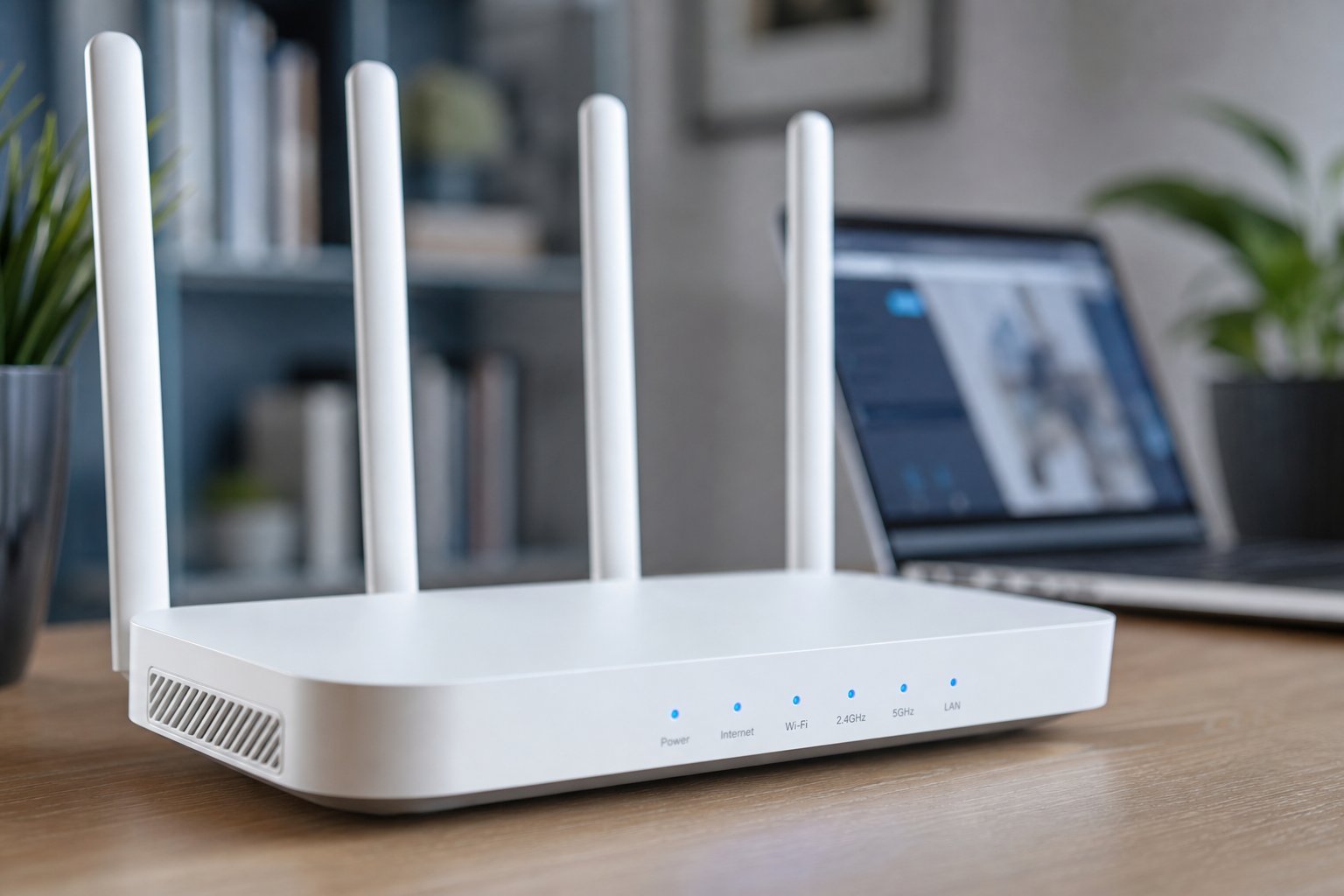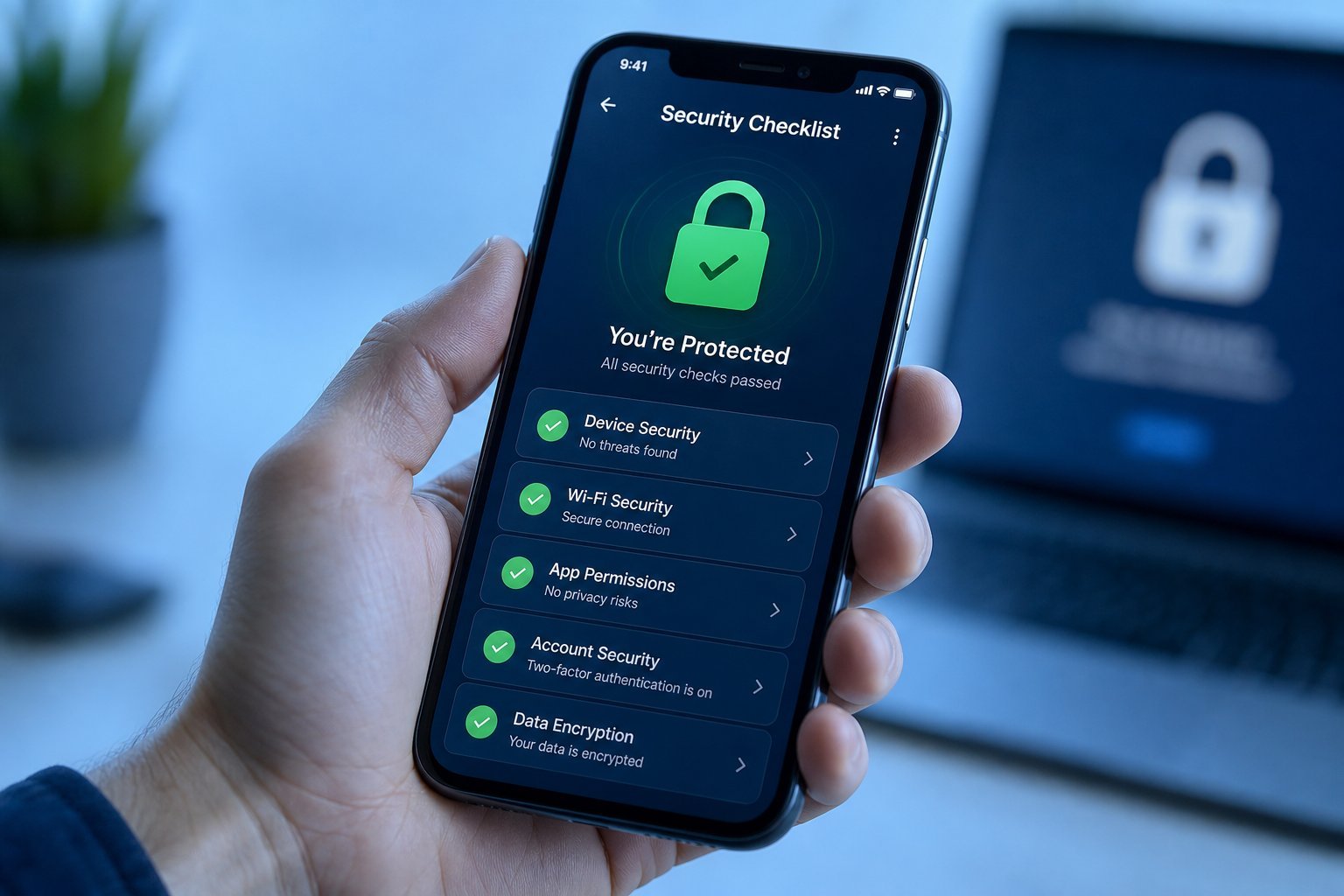
Your home Wi-Fi is the gateway to your digital life — it carries your banking, your work, your passwords and all your devices. But if it's not secured, anyone nearby can connect to it, slow it down, and potentially snoop on your traffic. Securing your home Wi-Fi is one of the most important (and easiest) security steps you can take.
This guide walks you through making your home network secure — in about 10 minutes.
What we'll cover
Change the Wi-Fi password Use strong encryption Secure the router admin Extra stepsChange the Wi-Fi password
The first and most important step: make sure your Wi-Fi password is strong and not the default. Many routers ship with a default password (often printed on the router) that anyone with the same router model might know.
A strong, unique Wi-Fi password is your first defense. It stops strangers from using your connection and accessing your network.
Use strong encryption
Encryption scrambles your Wi-Fi traffic so others can't read it. You need to make sure your network uses a modern encryption standard:
💡 The encryption rule
Make sure your Wi-Fi uses WPA2 or WPA3 encryption. If your network is "open" (no password) or uses old WEP encryption, anyone nearby can connect and potentially read your traffic. Upgrading to WPA2/WPA3 is essential.
Secure the router admin
Beyond the Wi-Fi password, you need to secure the router's own admin login — the one that lets you change settings. This is often left at the factory default, which is a big risk:
⚠️ Change the default admin login
Routers ship with a default admin username and password that are widely known (often "admin/admin"). If you haven't changed them, anyone who gets into your network could change your router settings. Change the admin password — and disable remote management if you don't need it.
Extra steps
For even stronger security, add these:
✨ Use the guest network
Set up your router's guest network for visitors and smart devices that don't need full access to your network. It keeps guests and less-secure gadgets off your main devices, reducing risk if a device is compromised.
📌 Bottom line
Securing your home Wi-Fi takes about 10 minutes and is essential. Change the Wi-Fi password to a strong, unique one, make sure encryption is set to WPA2 or WPA3, and change the router's default admin login (and disable remote management). Add extra security by updating firmware, enabling a guest network and reviewing connected devices. A secured network protects your banking, work and all your devices from nearby intruders.