๐Ÿ HighTechBee โ€” practical tech help, in plain English.
โœ๏ธ Write for us ๐Ÿ“ฉ Contact โ˜€๏ธ โ— Updated daily

Setting Up Parental Controls: Apple, Android & Windows

PS
Priya SharmaSecurity researcher ยท HighTechBee Editorial
Setting Up Parental Controls: Apple, Android & Windows

Parental controls are one of the most powerful tools for keeping kids safe online and managing screen time. We've touched on them in our kids' safety guide and phone guide; this guide focuses specifically on setting up parental controls on the main platforms.

Here's how to set up parental controls on Apple, Android, Windows and other common platforms.

Apple (iPhone/iPad/Mac)

Apple's parental controls are built into "Screen Time":

  • Set up Screen Time. On the child's device, go to Settings โ†’ Screen Time, and set it up as "This is My Child's [iPhone]."
  • Create a Screen Time passcode. So the child can't change the settings.
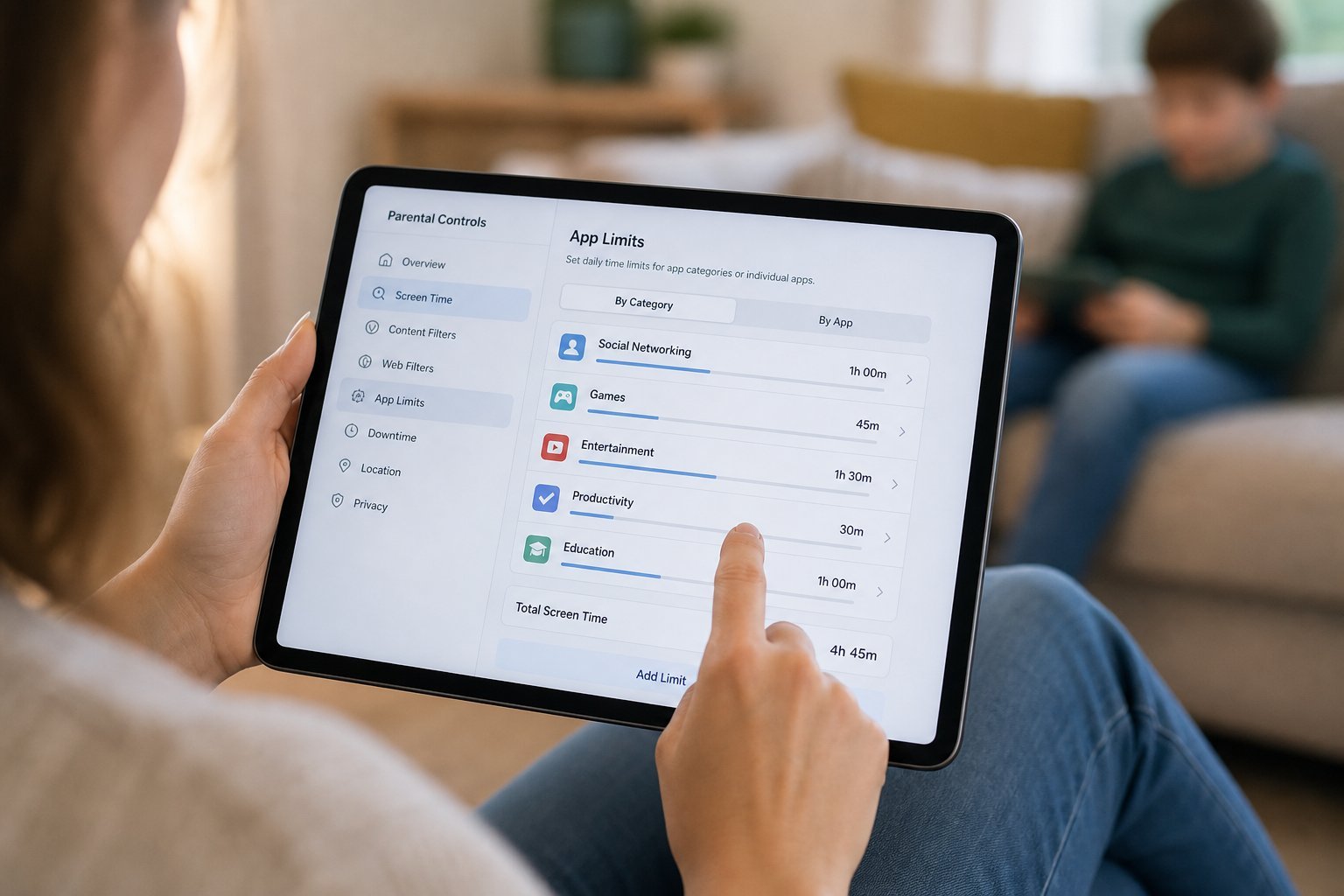
  • Set app limits. Limit time on categories or specific apps (see our screen time guide).
  • Set content restrictions. Block adult content and set age-appropriate ratings.
  • Approve app downloads. Require approval for installs and purchases.
  • Apple's Screen Time covers screen time, content restrictions and app approval. Set a passcode so the child can't override it.

    Android & Google

    Google's parental controls are "Family Link":

  • Set up Family Link. Create a Google account for your child (or add them) and link it to your family group.
  • Set screen time limits. Manage daily app time limits.
  • Approve apps. Approve or block app downloads.
  • Set content filters. Filter web content and app store.
  • See activity. View what your child does on the device.
  • Google Family Link gives you control over screen time, app approvals, content filters and visibility. It's the standard for Android devices.

    Windows

    Windows has parental controls through "Family Safety":

  • Create a child account. In Windows, set up a child's Microsoft account and add them to your family.
  • Set screen time limits. Manage when and how long they can use the device.
  • Filter web content. Microsoft Edge and the family settings filter inappropriate content.
  • Approve app and game purchases. Require approval for purchases.
  • View activity. See what they do.
  • Windows Family Safety covers screen time, web filtering, purchase approval and activity. Set it up with a child's Microsoft account.

    Other platforms

    Beyond the big three, other controls exist:

  • Streaming services. Netflix, YouTube and others have kids' profiles and parental controls (see our streaming guide).
  • YouTube. YouTube Kids or restricted mode filters content.
  • Consoles and game platforms. Most have parental controls for screen time and content.
  • Routers. Some routers offer network-level content filtering (see our router guide).
  • Third-party parental control apps. For more features, if needed.
  • โœจ Controls are a foundation, not a substitute

    Parental controls are an important foundation, but they don't replace supervision and conversation (see our guide). Use controls to set limits and block harmful content, but also talk to your kids about online safety and stay involved. Controls + conversation is the most effective approach.

    ๐Ÿ“Œ Bottom line

    Set up parental controls on each platform your kids use. On Apple, use Screen Time; on Android, Google Family Link; on Windows, Family Safety. These cover screen time limits, content filters, app/purchase approval and activity. Extend controls to streaming, YouTube, consoles and your router. Remember, controls are a foundation โ€” pair them with open conversations and supervision for the best protection.

    #parental-controls#kids#screen-time#content#safety
    PS

    Priya Sharma

    Security researcher

    Part of the HighTechBee editorial team. Priya Sharma writes practical, beginner-friendly tech guides that solve real everyday problems.