When you buy a TV today, it's almost certainly a "smart TV" — one with internet apps like Netflix, YouTube and streaming built in. That's convenient, but it also raises questions: do you need to connect it to the internet? Are its built-in apps good enough? What about privacy and updates?
This guide explains what a smart TV is, how to set one up properly, and when you might want to connect a separate streaming device instead of relying on the TV's built-in apps.
What we'll cover
What a smart TV is Setting it up Built-in apps vs a streaming device Privacy & updatesWhat a smart TV is
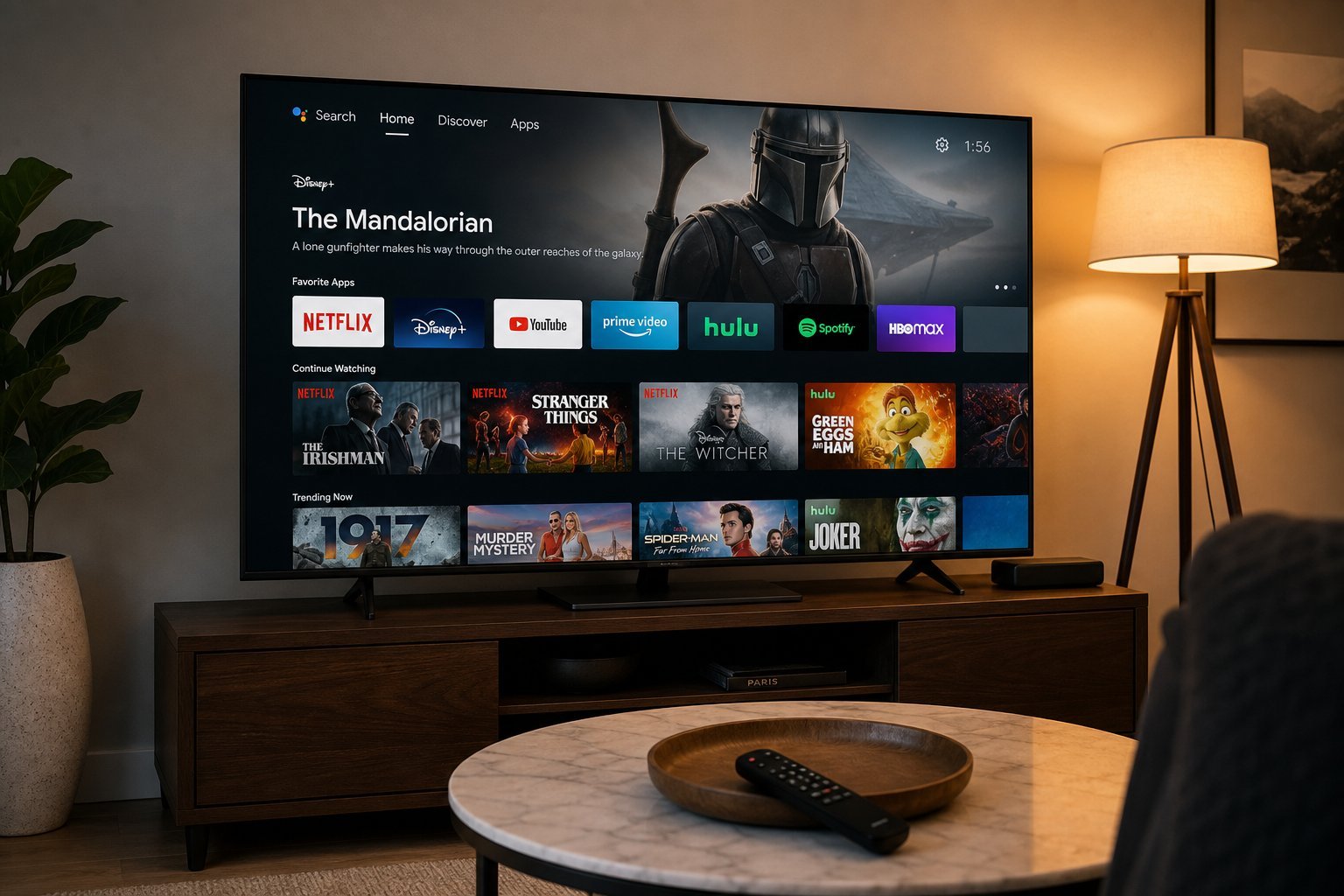
A smart TV is a television with built-in internet connectivity and an operating system that runs apps. Instead of needing an external box to stream, a smart TV can run Netflix, YouTube, and other apps directly.
Every major TV brand ships smart TVs, and they run on different operating systems (like Google TV, Samsung's Tizen, LG's webOS, or Roku TV). The interface varies by brand, but the concept is the same: internet apps built into the TV.
The convenience is obvious: no extra box, just connect to Wi-Fi and start streaming. But there are trade-offs, which we'll get to.
Setting it up
Setting up a smart TV is straightforward:
If the TV is in a good spot with a strong connection, setup takes a few minutes. Signing in to apps is the bulk of it.
Built-in apps vs a streaming device
This is the key decision. Here's the honest comparison between a smart TV's built-in apps and a separate streaming device (see our streaming devices guide):
- Smart TV apps are convenient — no extra hardware, and many modern smart TVs run apps well.
- But built-in apps have downsides. They may be slower than a dedicated device, get fewer updates, and many TV brands stop updating apps for older models — leaving you with outdated, occasionally broken apps.
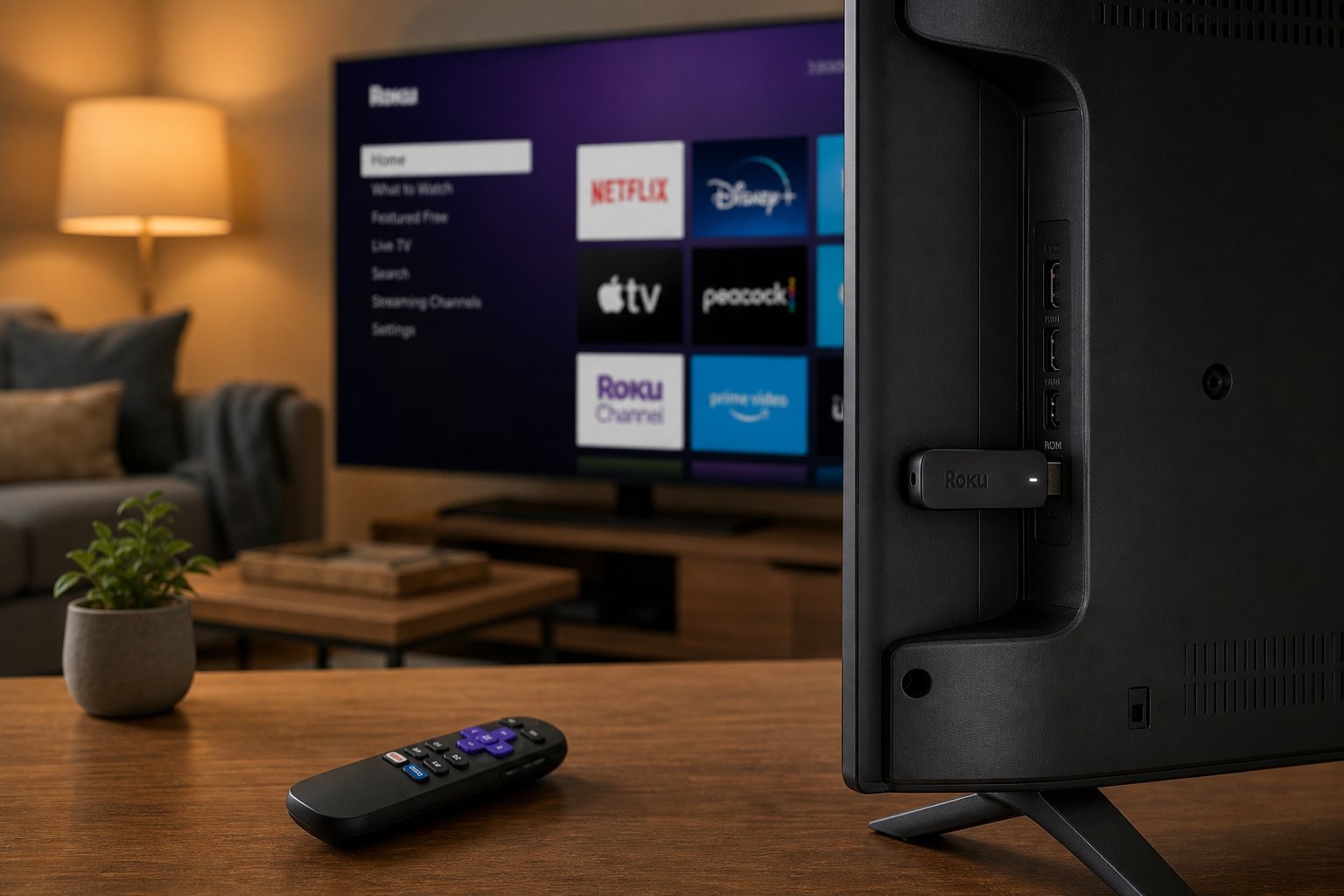
- A streaming device (like Roku, Fire Stick or Chromecast) is faster, gets regular updates, and often has a better interface. It's a worthwhile upgrade if your TV's apps are slow or outdated.
💡 When to add a streaming device
If your smart TV's built-in apps run smoothly, use them. If they're slow, limited, or stop getting updated, plugging in an affordable streaming device (Roku, Fire Stick, Chromecast) is the best fix — it's faster and stays updated.
Privacy & updates
Because a smart TV connects to the internet and often has a microphone (for voice control), privacy is worth a thought:
- Review privacy settings. Most smart TVs let you limit data collection and voice recording. Take a few minutes to adjust them.
- Consider whether you need the microphone for voice control. If not, you can often disable it.
- Keep the TV updated. Updates patch security vulnerabilities.
- Check what data it shares. Smart TV platforms collect viewing data — review and limit what you're comfortable with.
✨ The privacy review
When you set up a smart TV, spend a few minutes in the settings reviewing privacy options — disable voice/ads collection you don't want, and keep the software updated. A smart TV is a device on your network, so treat it with the same care as other connected devices.
📌 Bottom line
A smart TV has streaming apps built in — convenient and requiring no extra box. Set it up by connecting to Wi-Fi, signing into your apps and updating the software. Use the built-in apps if they run well, but add an affordable streaming device if they're slow or stop getting updates. And don't forget privacy: review the TV's settings, consider the microphone, and keep it updated. A smart TV is great for streaming, but a little setup and awareness make it better and safer.