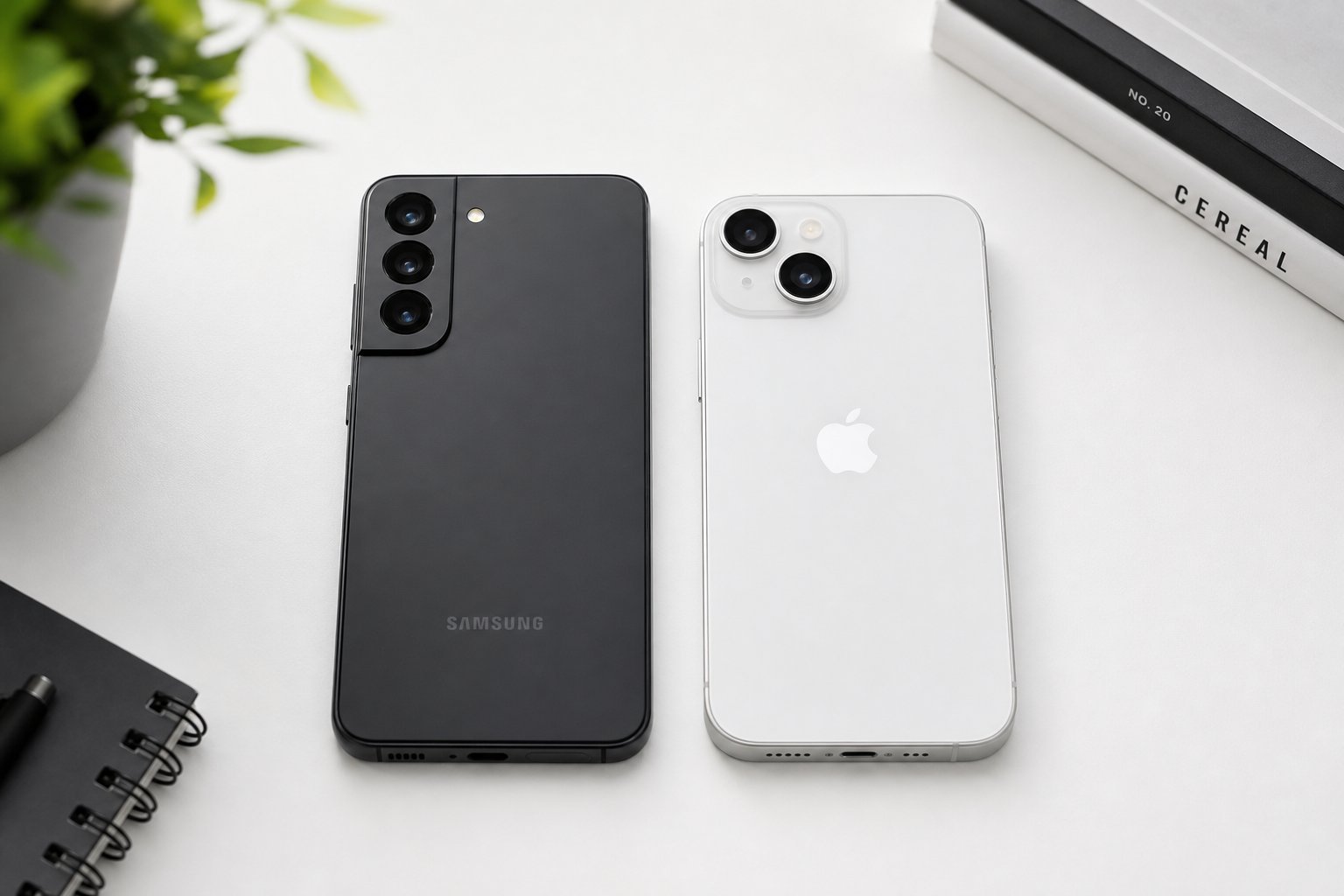
There's a moment of dread every time a new phone arrives: the thought of moving everything over. Contacts, photos, messages, apps, WhatsApp chats — the list feels endless, and the worry is always "what if I lose something important?"
Take a breath. Moving to a new phone in 2026 is genuinely easier than most people fear. Both major platforms now have tools that do the heavy lifting for you. This guide walks you through the whole process step by step — including the one crucial thing to do before you start — so nothing gets left behind.
What we'll cover
Before you start: the golden rule Moving to Android (or iPhone to Android) Moving to iPhone (or Android to iPhone) What transfers automatically (and what doesn't) Reinstalling apps & WhatsApp chats After the move: the checklistBefore you start: the golden rule
The single most important thing you can do before transferring anything is back up your old phone. Every transfer tool is a convenience, but a backup is your safety net. If anything goes wrong — and occasionally it does — you'll be glad you have one.
Here's the best approach for a backup, whichever phone you have:
Do this even if you're planning to use a direct transfer cable. Backup first, transfer second. It takes five minutes and saves you from ever facing data loss.
✨ The 5-minute rule
If your new phone arrives and you don't have 5 minutes to back up the old one first, you're too rushed. Take the 5 minutes. It's the difference between a smooth move and a stressful one.
Moving to Android (or iPhone to Android)
If your new phone is an Android, the process is refreshingly simple. Whether you're coming from an old Android or even an iPhone, Google's migration tool handles most of it.
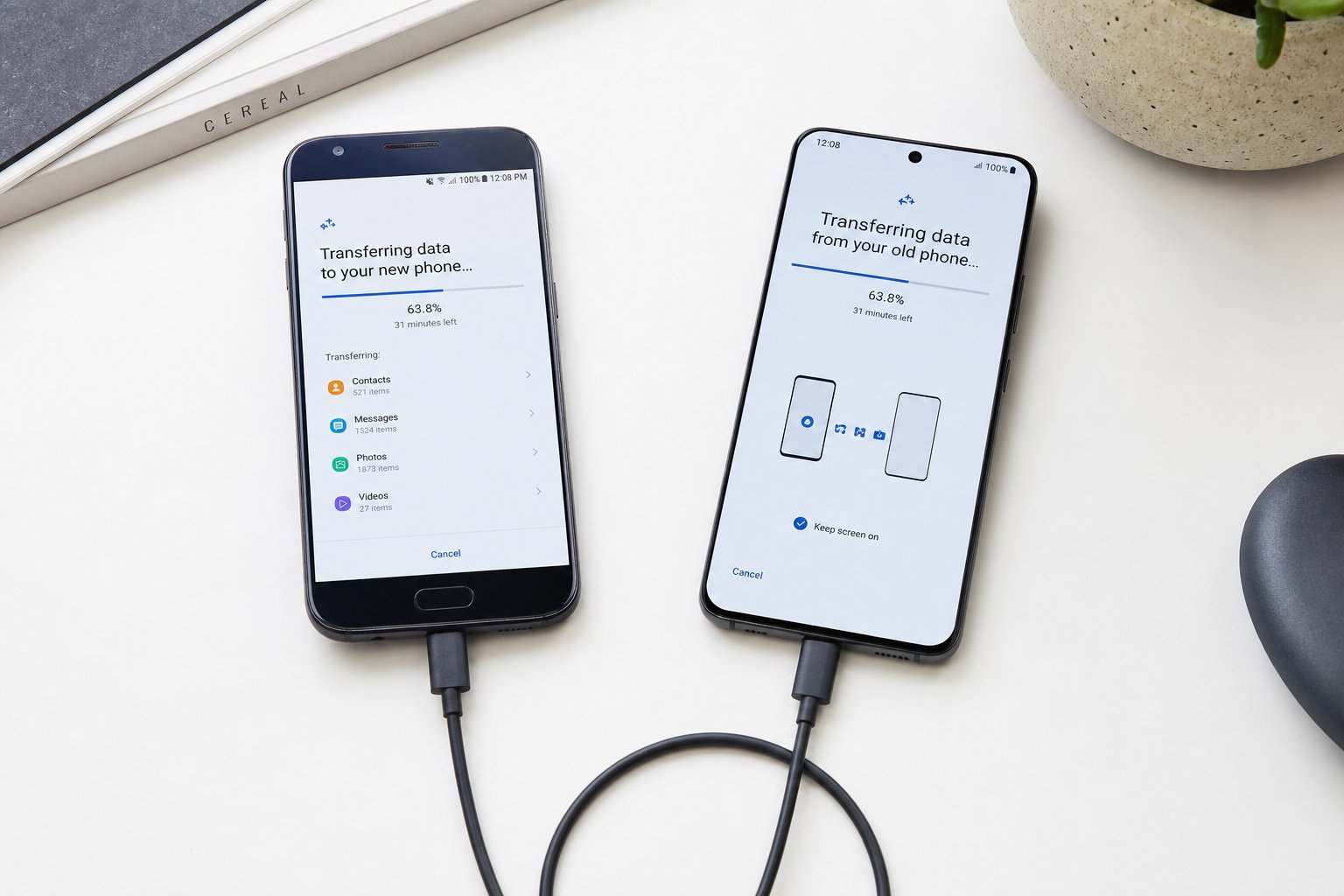
Most new Androids will prompt you during setup with something like "Copy apps and data from your old phone." Here's how it goes:
If you're coming from an iPhone, don't worry — Google has a dedicated "Move to Android" process that transfers your contacts, photos and more. It works well; just give it time.
Moving to iPhone (or Android to iPhone)
If your new phone is an iPhone, Apple makes moving easy whether you're coming from an old iPhone or an Android.
Coming from an iPhone? During setup, you'll be offered "Quick Start" or "Move Data from iPhone." Keep the two iPhones near each other, follow the prompts, and Apple transfers your data directly — including apps, settings and messages.
Coming from an Android? Use Apple's Move to iOS app:
Note that apps themselves don't transfer from Android — you'll download them from the App Store afterward, but Move to iOS tells you which ones you had.
What transfers automatically (and what doesn't)
It helps to know what the tools handle and what you'll need to do yourself:
| Item | Transfers automatically? | Notes |
|---|---|---|
| Contacts | ✅ Yes | Usually via your cloud account |
| Photos & videos | ✅ Mostly | Cloud backup is the easiest route |
| Text messages | ✅ Usually | Via transfer tool or cloud backup |
| Calendar & notes | ✅ Yes | Synced to your account |
| Apps | ⚠️ Reinstall | You'll download them again |
| In-app data (e.g., game progress) | ⚠️ Depends | Needs account or cloud save |
| WhatsApp chats | ⚠️ Special step | See below |
The important takeaway: your core data (contacts, photos, messages) transfers easily. The things that need extra attention are apps, in-app data, and WhatsApp chats — which is the next section.
Reinstalling apps & WhatsApp chats
Apps don't transfer as files — they're downloaded fresh from the app store. Here's what to know:
- Log in to your app accounts. Once an app is installed, sign in and your data (for that account) comes back automatically.
- Game progress usually saves if the game was linked to an account (Google Play Games, Game Center, or a social login). If not, it may be lost — worth checking before you delete the old phone.
- Two-factor apps (like Google Authenticator) need special handling — move them using the app's own transfer feature, or you may be locked out of accounts.
WhatsApp deserves its own step, because its chats live on the device, not in a cloud account you can log into:
This is the most common "I lost my chats" complaint, and it's almost always because the cloud backup wasn't done first. Do the backup before you start the transfer.
⚠️ Don't delete the old phone yet
Keep your old phone for at least a few days after the move. Check that everything important made it across — then wipe the old phone and trade it in or sell it.
After the move: the checklist
Once the transfer finishes, run through this quick checklist to make sure nothing's missing:
📌 Bottom line
Moving to a new phone is easy if you back up first. Turn on cloud backup, charge both phones, use the official transfer tool (Google for Android, Move to iOS for iPhone), reinstall your apps, and back up WhatsApp before you begin. Keep the old phone for a few days, verify everything transferred, and you'll enjoy your new phone without losing a thing.