Running out of storage on your desktop — or wanting faster load times — is a common reason to upgrade. We've covered SSDs and RAM upgrades; this guide focuses specifically on upgrading your desktop's storage, whether you're adding space or speed.
Here's how to upgrade your desktop's storage — adding capacity, going faster, or both.
Do you need more or faster?
First, decide what you need:
Decide whether you need more space, more speed, or both. A fast SSD for the system and a large drive for files is a popular setup.
Choosing storage
Here's how to choose the right storage:
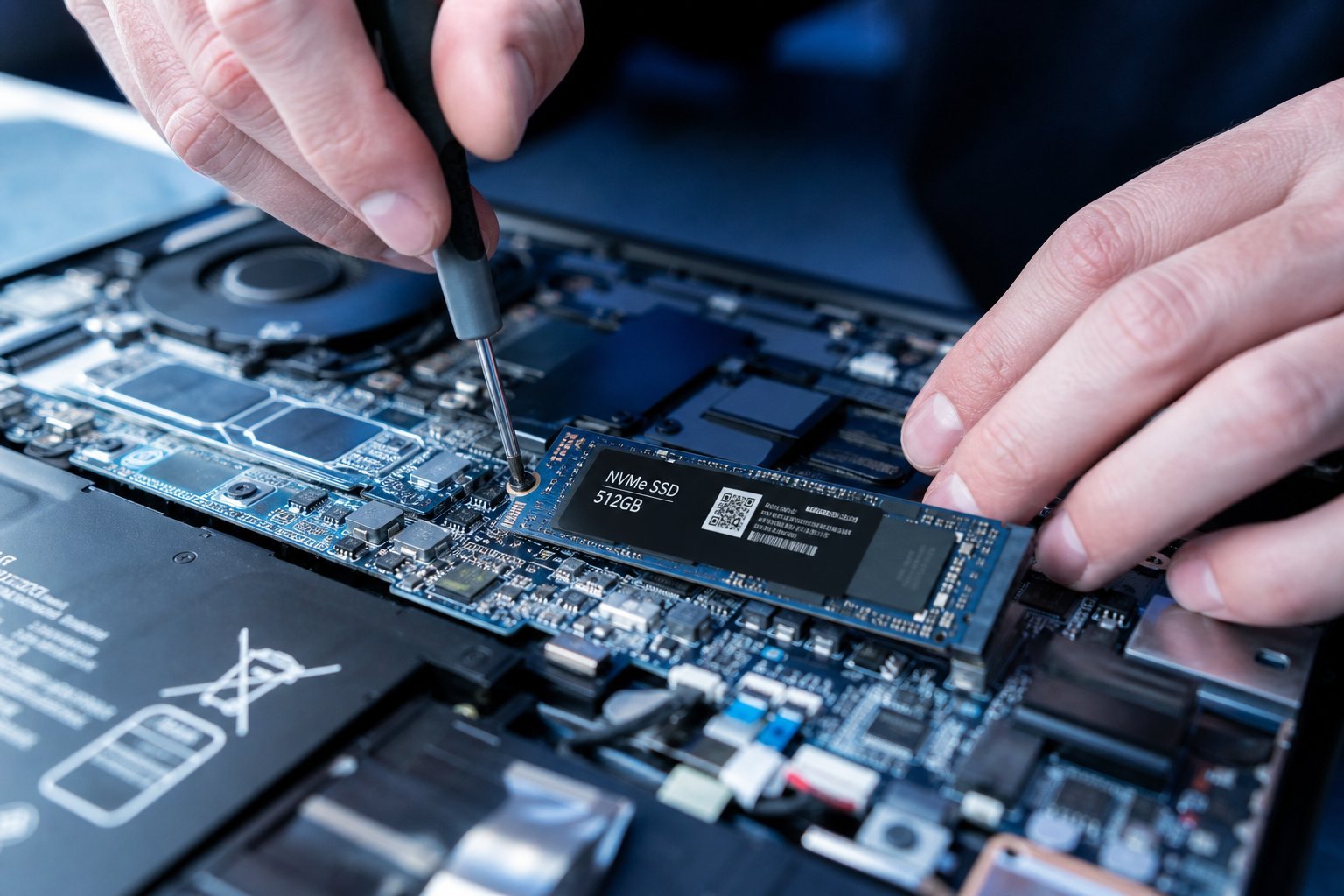
Choose the type, form factor, capacity and connection that fit your needs and motherboard. An NVMe SSD is the fastest, a SATA SSD is a great value, an HDD is cheap bulk storage.
Installing it
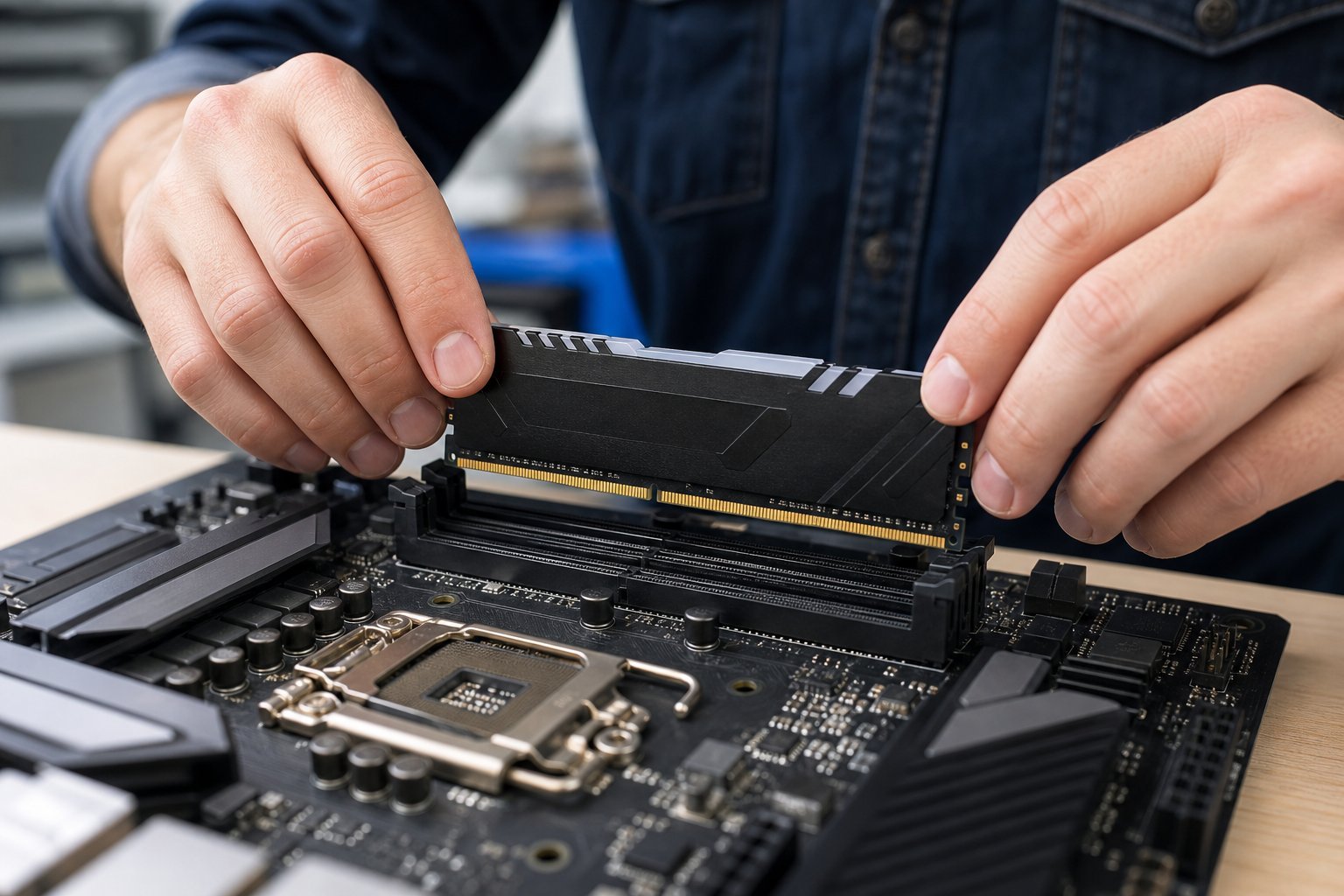
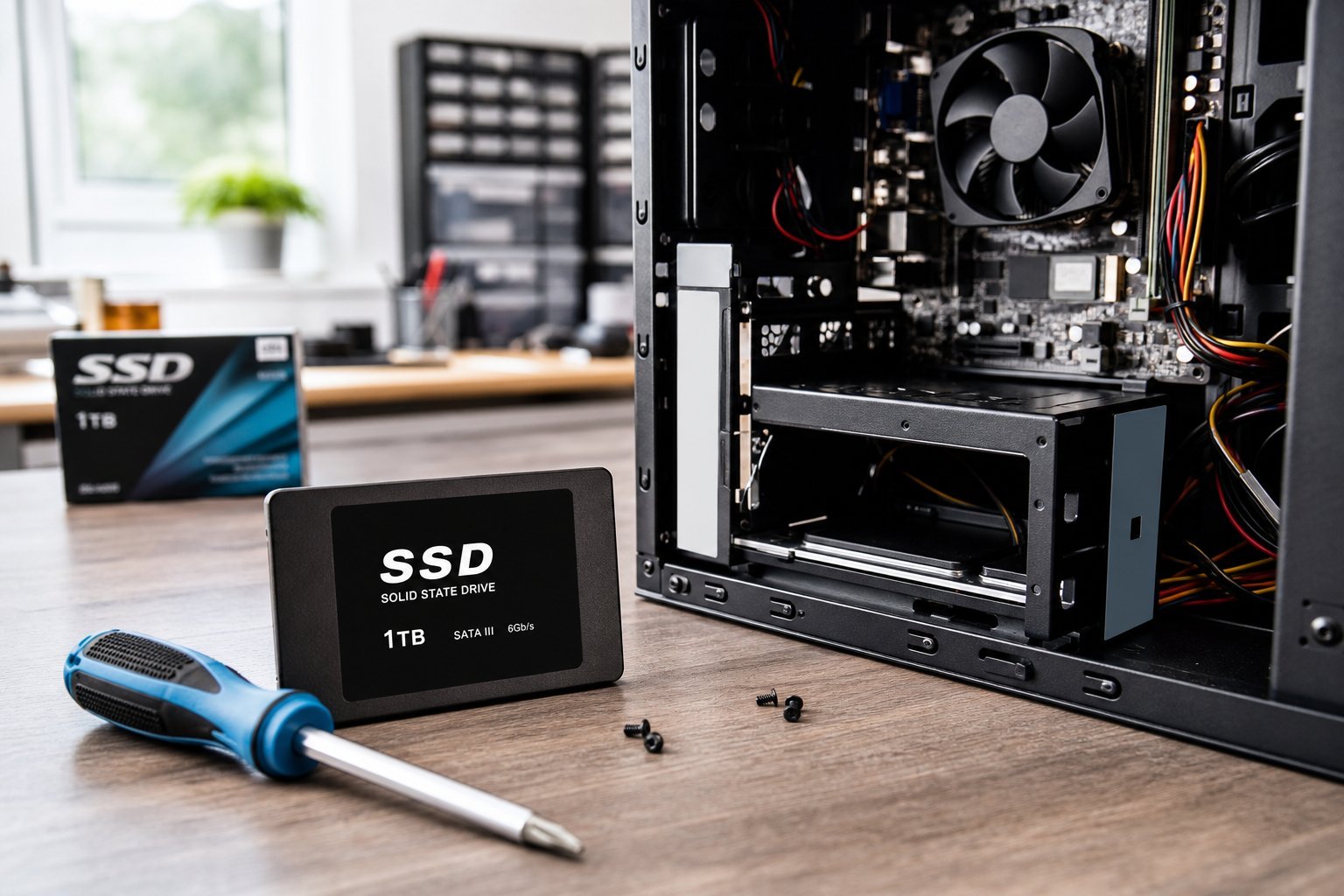
Installing desktop storage is one of the easier upgrades:
✨ Adding a drive is easy — a big win
Adding a storage drive to a desktop is one of the simplest and most rewarding upgrades. It gives you instant space or speed without replacing your whole computer. If you're not comfortable opening your PC, a local shop can install it cheaply — still far cheaper than a new computer.
💡 The smart storage setup
For most desktops, the ideal setup is a fast SSD for the system, games and programs (so everything loads quickly) plus a larger drive for files and archives. Add speed where you work, capacity where you store. This gives you fast performance and plenty of room without paying premium prices for huge SSDs.
📌 Bottom line
Upgrade your desktop's storage by deciding what you need — more space, more speed, or both. Choose the right type (SSD for speed, HDD for bulk, or both), match the form factor and connection to your motherboard, and pick the right capacity. Install it by powering down, grounding yourself, mounting the drive and connecting it. The smart setup: a fast SSD for system/games plus a larger drive for files. Adding storage is an easy, high-value upgrade.