Is your computer running hot? Fans spinning at full speed, heat radiating from the case, performance dropping in games? Heat is one of the biggest threats to a computer's performance and lifespan — and it's often fixable. Understanding cooling can make your computer faster and last longer.
This guide explains why computers overheat, the warning signs, and how to keep yours cool.
What we'll cover
Why computers generate heat Signs your computer is overheating How to cool it down Prevent overheatingWhy computers generate heat
Computers generate heat because they do work. When components like the processor and graphics card run, they produce heat as a byproduct. It's completely normal — the issue is when heat builds up faster than it can escape.
Here's the key point: computers are designed to protect themselves from overheating by slowing down. This is called "throttling." When a component gets too hot, the system reduces its performance to cool it. That means an overheating computer is literally slower than it should be.
So cooling isn't just about protecting hardware — it's about maintaining performance. A well-cooled computer runs faster and lasts longer.
Signs your computer is overheating
Here's how to tell if heat is a problem:
- Fans running loud or constantly. Your cooling system working hard is a sign of heat build-up.
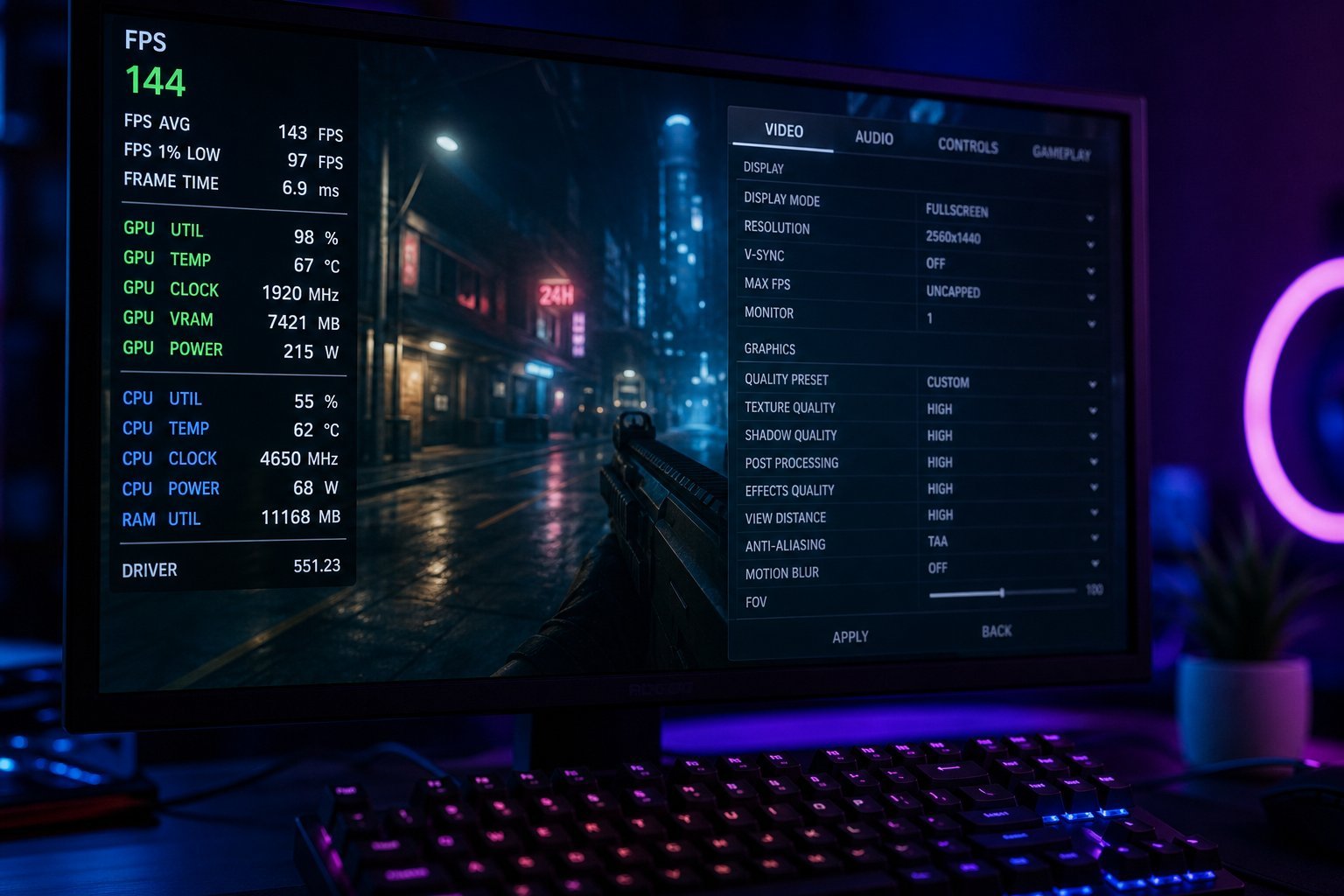
- Performance drops under load. Games or tasks slowing down after a while suggests throttling.
- Excessive heat from vents. Some warmth is normal; a lot is a concern.
- Random shutdowns or restarts. When a system gets too hot, it may shut down to protect itself.
- Warm to the touch in specific spots (especially laptops).
If you notice these, especially performance drops or shutdowns, cooling deserves attention.
How to cool it down
Here's what to do if your computer is running hot:
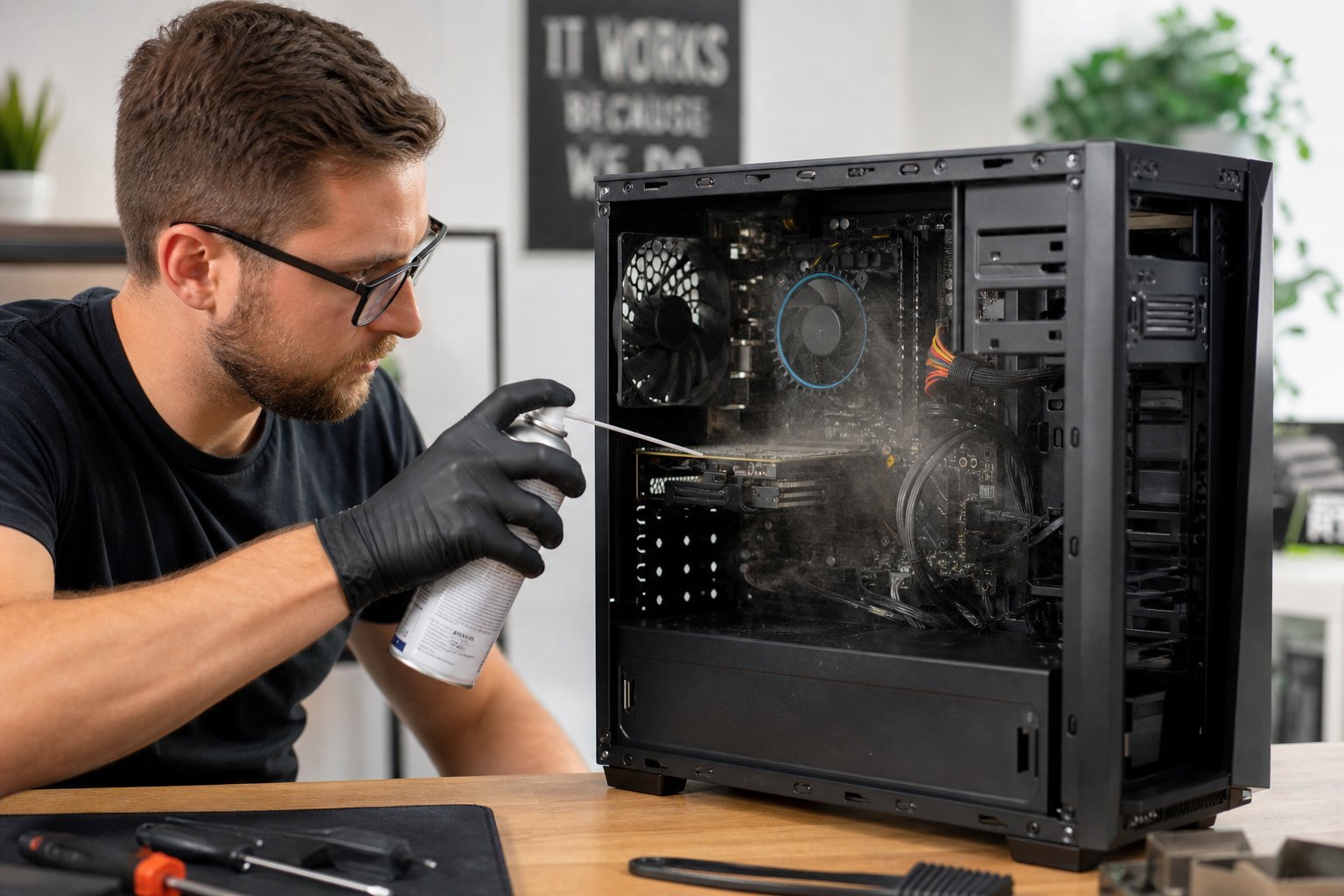
These fixes address the most common causes of overheating: dust and blocked airflow. Often, cleaning and ventilation are all that's needed.
Prevent overheating
Prevention keeps your computer cool over the long term:
- Keep it clean. Clear dust from vents and fans regularly.
- Ensure airflow. Leave space around the computer; use laptops on hard surfaces.
- Avoid heat sources. Don't place the computer in direct sun or near heaters.
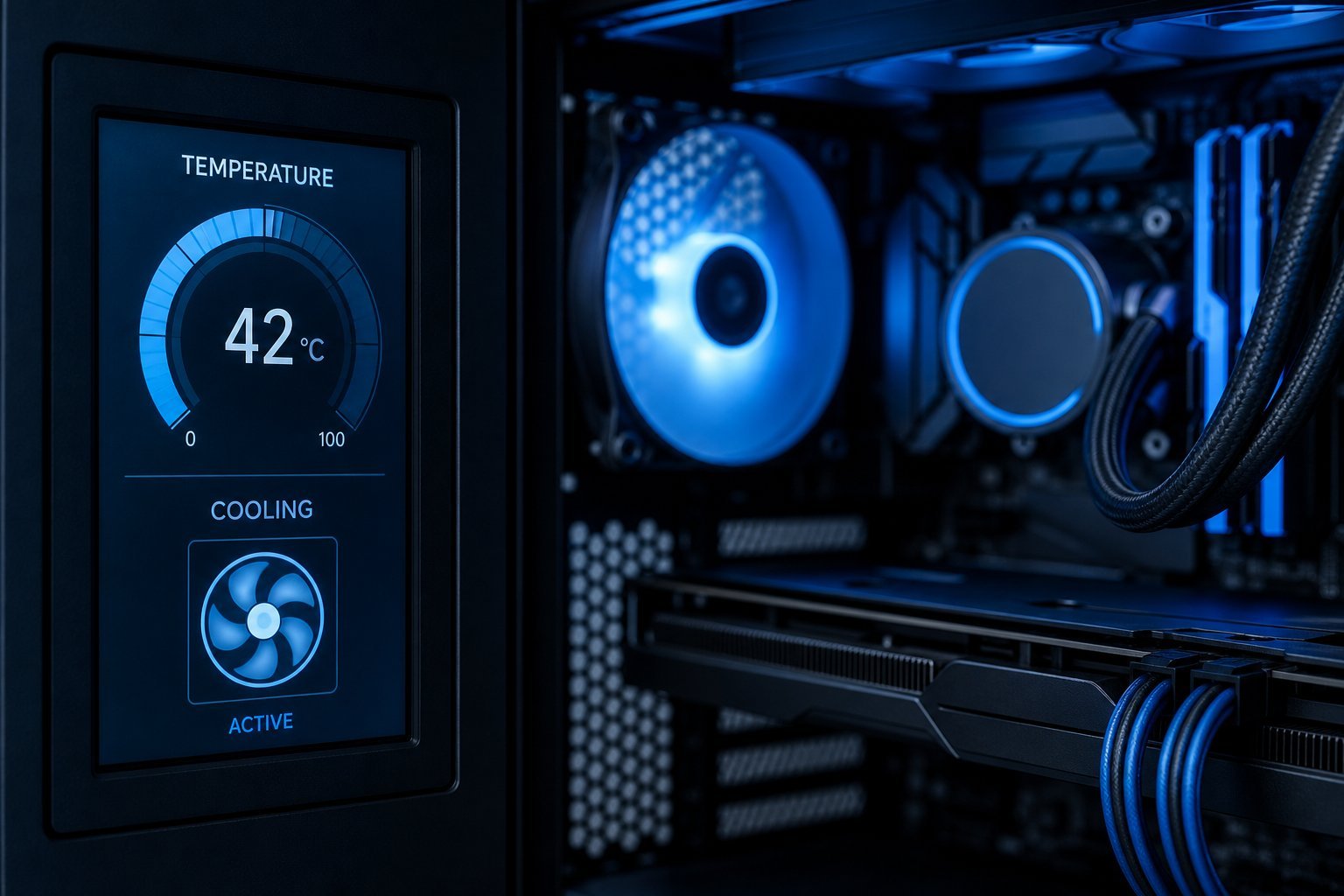
- Monitor temperatures. Apps can show your CPU/GPU temperatures so you spot problems early.
- Keep the room cool if you can — ambient temperature matters.
✨ Watch the "loud fan" signal
If your computer's fans are constantly loud or spinning at high speed for no obvious reason, that's often a sign of dust build-up or blocked airflow. Cleaning the vents and ensuring airflow can make it run quieter and cooler — and recover performance lost to throttling.
📌 Bottom line
Computers generate heat, and if it builds up, they slow themselves down (throttle) to protect against damage. So cooling is about both performance and longevity. Watch for loud fans, performance drops, excessive heat and shutdowns. Fix it by cleaning dust, ensuring airflow and managing demanding tasks; prevent it by keeping the computer clean, well-ventilated and away from heat. A cool computer is a fast, long-lasting computer.