Setting up a smartphone for a parent or grandparent can feel like a special kind of challenge. They might be less familiar with technology, worried about breaking something, or intimidated by all the options and settings. The good news: a few thoughtful choices make a smartphone genuinely easy — and even enjoyable — for an older adult.
This guide walks through choosing and setting up a phone for an older relative: making it simple, safe, and something they'll actually use.
What we'll cover
Choosing the right phone Set it up for simplicity Make it easier to see & use Keep them safe Teaching without frustrationChoosing the right phone
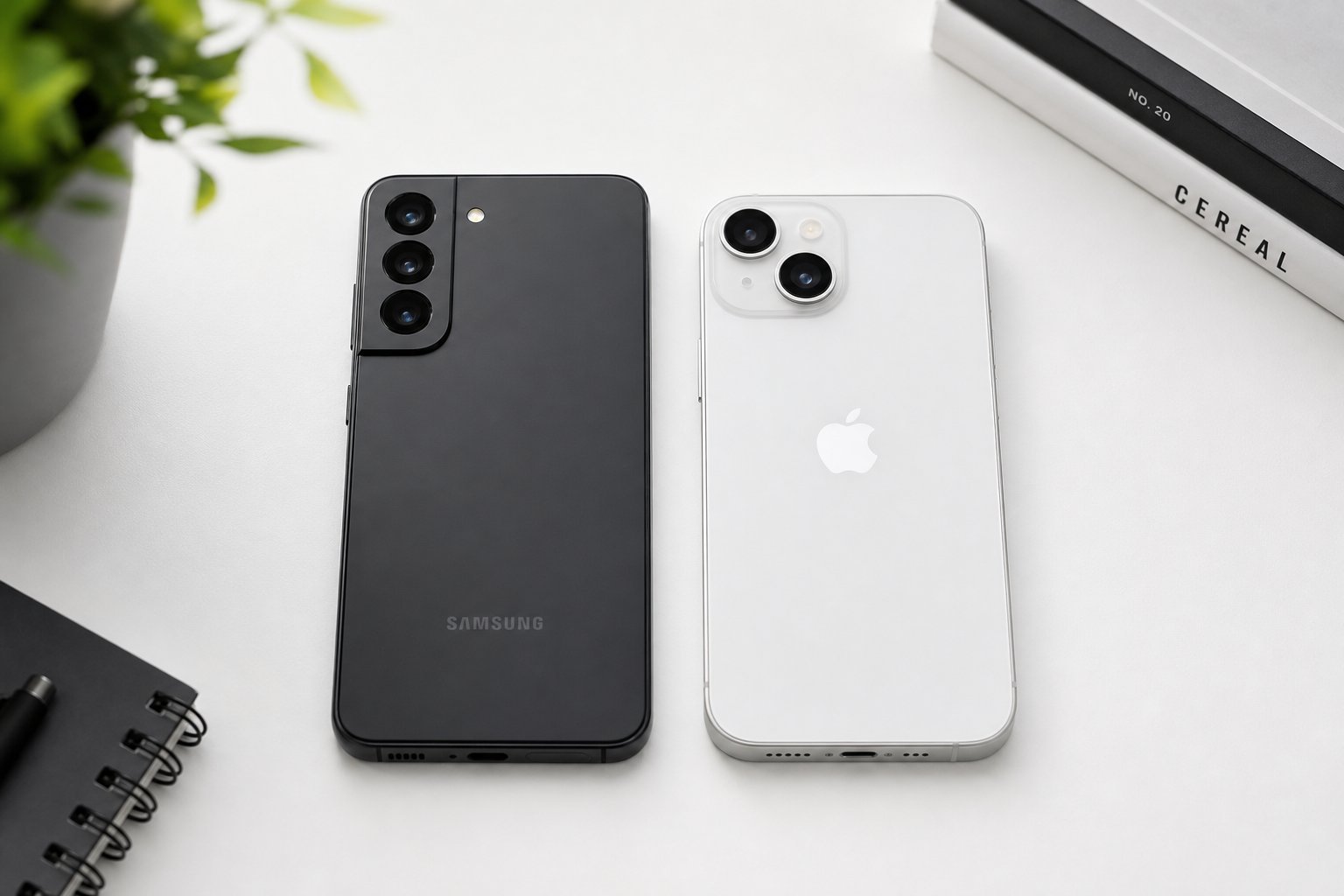
For most older adults, you don't need a top-of-the-line phone. You need one that's simple, reliable and easy to use:
- Bigger screen, bigger text. A larger phone with good readability helps with aging eyes.
- Good battery life. A phone that lasts all day (or more) is less stressful — they won't worry about it dying.
- Simple operating system. iPhones are often recommended for seniors because of their straightforward interface and strong built-in accessibility. But a well-configured Android works fine too.
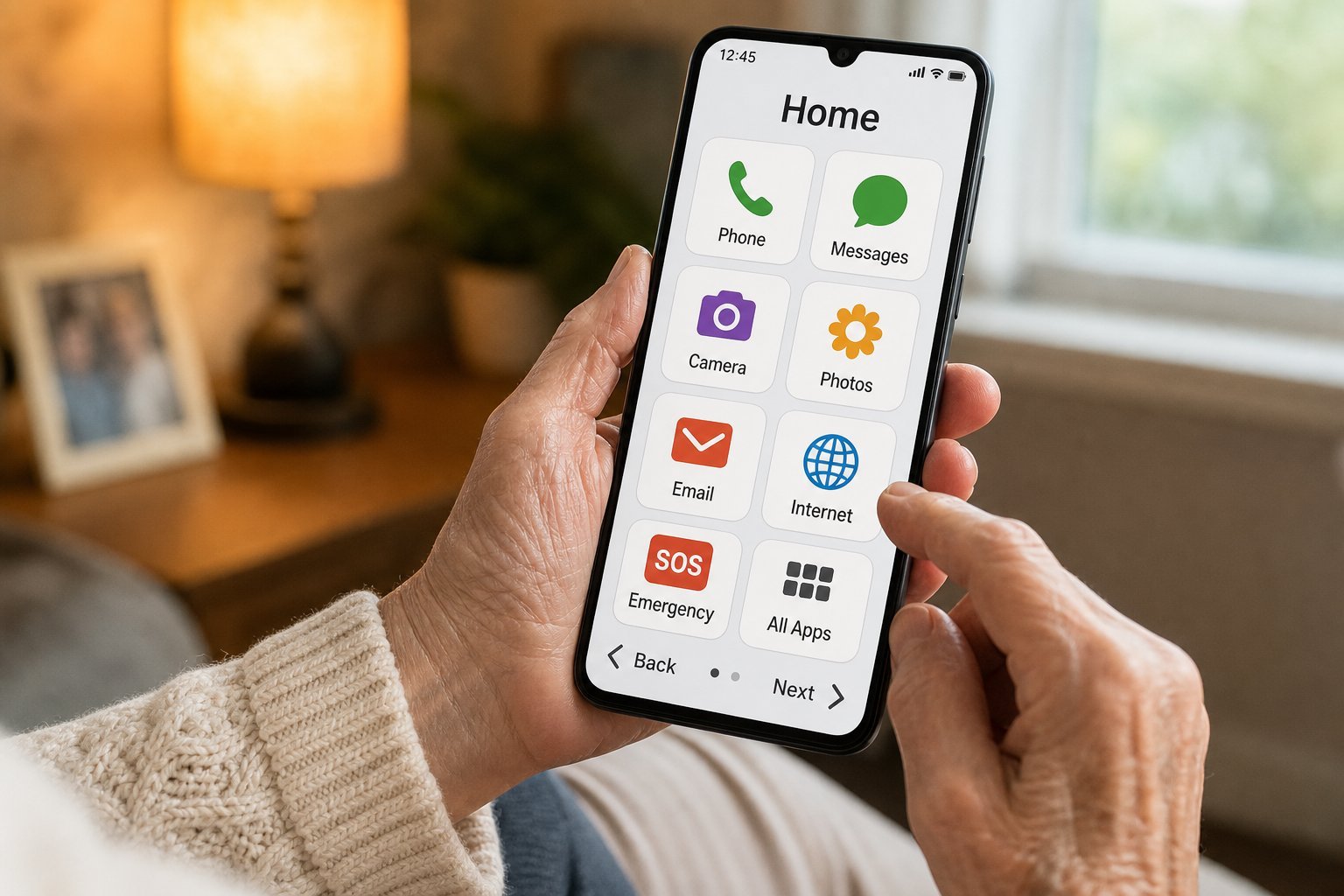
- Consider a "simple mode" phone. Some Androids offer a simplified home screen (large icons, big text) — ideal for beginners.
Match the phone to their comfort level. If they're completely new to smartphones, prioritize simplicity and large, clear elements over specs.
Set it up for simplicity
Before you hand over the phone, configure it so it's easy from day one:
Setting the phone up for them before handing it over removes the most frustrating part — the initial configuration. A clean, simple home screen is the best start.
Make it easier to see & use
Both platforms have accessibility features that make phones dramatically easier for older users:
- Larger text and display zoom — makes everything bigger and easier to read.
- Magnification gestures — triple-tap to zoom in on anything.
- Hearing aid compatibility and louder/clearer audio settings.
- Simplified home screens — on many Androids, a "simple mode" with big icons and text.
- Voice input — dictating text can be easier than typing for some.
Take a few minutes to enable these in settings. They turn a phone that feels "too small and fiddly" into one that's comfortable to use.
Keep them safe
Older adults are prime targets for phone scams, so set up safety measures:
Talk about the common scams in a calm, supportive way — not to scare them, but to protect them. This is one of the most valuable things you can do.
Teaching without frustration
How you teach matters as much as what you teach. These approaches reduce frustration for both of you:
- Go slow and repeat. Teach one thing at a time, and be patient with repetition — it's normal.
- Write it down. Create a simple, large-print guide for the basics (make a call, send a text, take a photo).
- Let them do it. Guide them through actions rather than doing everything for them — hands-on practice sticks better.
- Praise progress. Celebrate what they learn. Confidence is a big factor.
- Be patient. What's obvious to you is new to them. A calm, encouraging tone makes all the difference.
✨ Create a simple cheat sheet
Write down a short, large-print guide with the 3–5 things they'll use most: how to make a call, send a text, take a photo, and how to reach family. Keep it near their chair or on the fridge. Having a reference reduces anxiety and dependence on you for every little thing.
📌 Bottom line
Setting up a phone for an older adult is about simplicity and patience. Choose a phone with a big screen and good battery, configure it before handing it over (larger text, decluttered home screen, key contacts), and enable accessibility features. Set up screen lock and two-factor authentication, and calmly explain common scams. Then teach gently — one thing at a time, with written notes and plenty of patience. A little thoughtful setup turns a daunting device into something they'll genuinely enjoy.