๐Ÿ HighTechBee โ€” practical tech help, in plain English.
โœ๏ธ Write for us ๐Ÿ“ฉ Contact โ˜€๏ธ โ— Updated daily

Printer Won't Print or Offline? Fix Common Printer Problems

MT
Michael TorresPC performance writer ยท HighTechBee Editorial
Printer Won't Print or Offline? Fix Common Printer Problems

Printers have a reputation for being finicky. "It won't print!" is a universal frustration โ€” a document won't print, the printer says "offline," or it jams at the worst moment. But here's the good news: most printer problems are common, predictable and fixable yourself.

This guide covers the most common printer issues and how to fix them โ€” a practical printer troubleshooting playbook.

Printer won't print

If your printer won't print, try these in order:

  • Check the basics. Is it on, has paper, has ink/toner? Check for error lights or messages.
  • Check the connection. Is it connected to your computer (USB or Wi-Fi)? (see our troubleshooting guide).
  • Check the print queue. A stuck document in the queue blocks everything. Clear it and try again.
  • Restart both devices. Turn off the printer and computer, wait, and turn them back on.
  • Check the correct printer is selected. If you have multiple printers, the wrong one may be chosen.
  • Most "won't print" issues are a stuck print queue, a connection problem, or a basic issue like no paper. Check these in order.

    Printer shows offline

    "Printer is offline" is one of the most common messages. Here's how to fix it:

  • Set it as default. In your system's printer settings, make sure it's the default printer.
  • Clear the offline status. In the print queue, uncheck "use printer offline" if it's checked.
  • Check the connection. A wireless printer that lost Wi-Fi shows offline. Reconnect it (see the wireless section below).
  • Restart. Turn the printer off and on to clear a stuck offline state.
  • Reinstall the driver if the issue persists.
  • Offline status is usually a connection or driver issue. Set the printer as default, clear the offline flag, check the connection and restart.

    Paper jams & quality

    Paper jams and poor print quality are common:

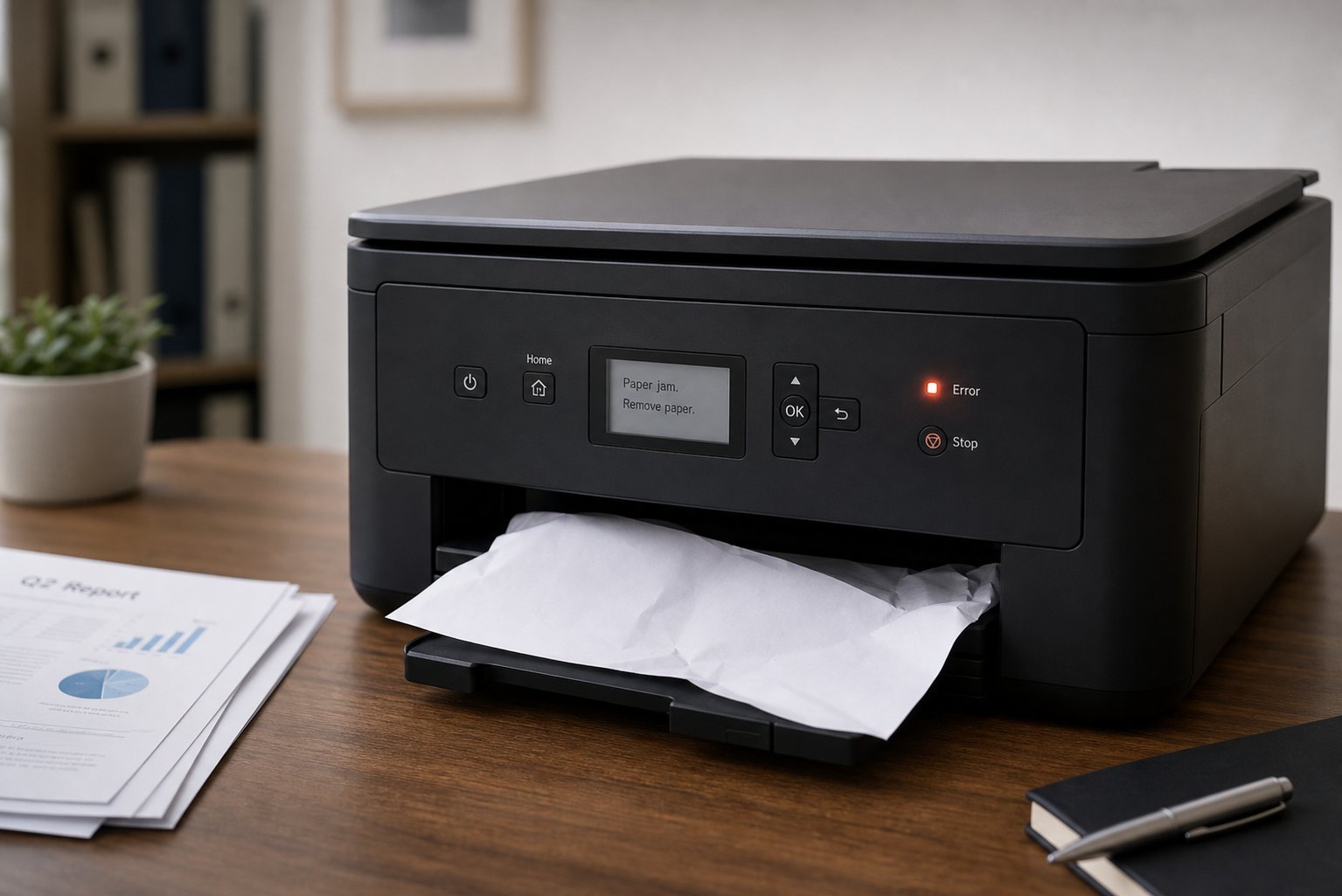
  • Clear paper jams carefully. Follow the printer's instructions, remove the paper gently, and check for torn bits.
  • Use the right paper. Misloaded or cheap paper causes jams. Load it straight and not overfilled.
  • Poor quality? Check ink/toner. Low ink causes faded or streaky prints. Replace or clean the printhead.
  • Clean the printer. Dust and dried ink cause quality issues โ€” run a cleaning cycle.
  • Use quality settings. If prints look bad, check the print quality setting.
  • Jams and quality issues are usually paper loading, low ink/toner or cleanliness. Address those first.

    Wireless printer issues

    Wireless printers add Wi-Fi to the mix. Common fixes:

  • Check the printer's Wi-Fi connection. Ensure it's on the same network as your computer.
  • Reconnect the printer. Reconnect it to Wi-Fi through its setup or the printer software.
  • Check the network. A weak or dropped Wi-Fi signal causes disconnections (see our Wi-Fi guide).
  • Keep the printer and router reasonably close.
  • Update the printer software/driver. Updates fix connectivity issues (see our updates guide).
  • โœจ Try wired if wireless keeps failing

    If your wireless printer keeps dropping, connect it via USB instead. Wired is more reliable and eliminates Wi-Fi issues. Many people switch to wired for a printer that sits near their computer โ€” it's more dependable (see our ethernet guide for the wired vs wireless logic).

    ๐Ÿ“Œ Bottom line

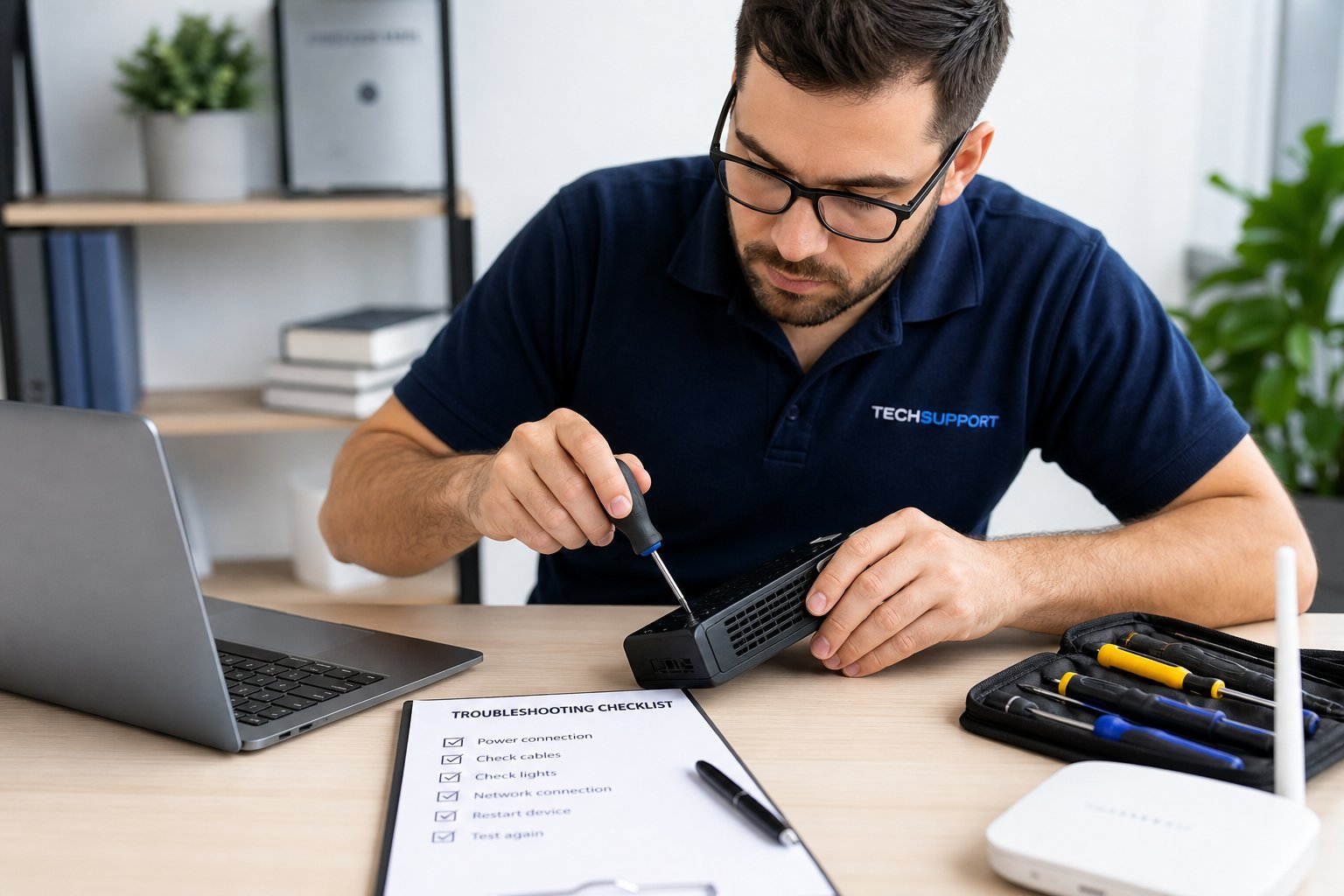
    Most printer problems are fixable. For "won't print," check the basics, connection, print queue and correct printer, then restart. For "offline," set it as default, clear the offline flag and check the connection. For jams and quality, fix paper loading, low ink/toner and cleanliness. For wireless issues, ensure the same network, reconnect, and keep them close โ€” or switch to USB. A little systematic troubleshooting fixes most printer frustrations.
    #printer#troubleshooting#offline#jam#wireless
    MT

    Michael Torres

    PC performance writer

    Part of the HighTechBee editorial team. Michael Torres writes practical, beginner-friendly tech guides that solve real everyday problems.