A new computer is exciting — but setting it up can feel like a chore, and doing it wrong can leave you with a cluttered, insecure machine. The good news: with a little planning, you can set up a new computer properly in an afternoon — clean, secure and ready to work.
This guide walks you through setting up a new computer the right way, step by step.
Before you start
A little preparation makes setup smoother:
Have your data ready. Know what you want to transfer from your old computer (see our transfer guide).
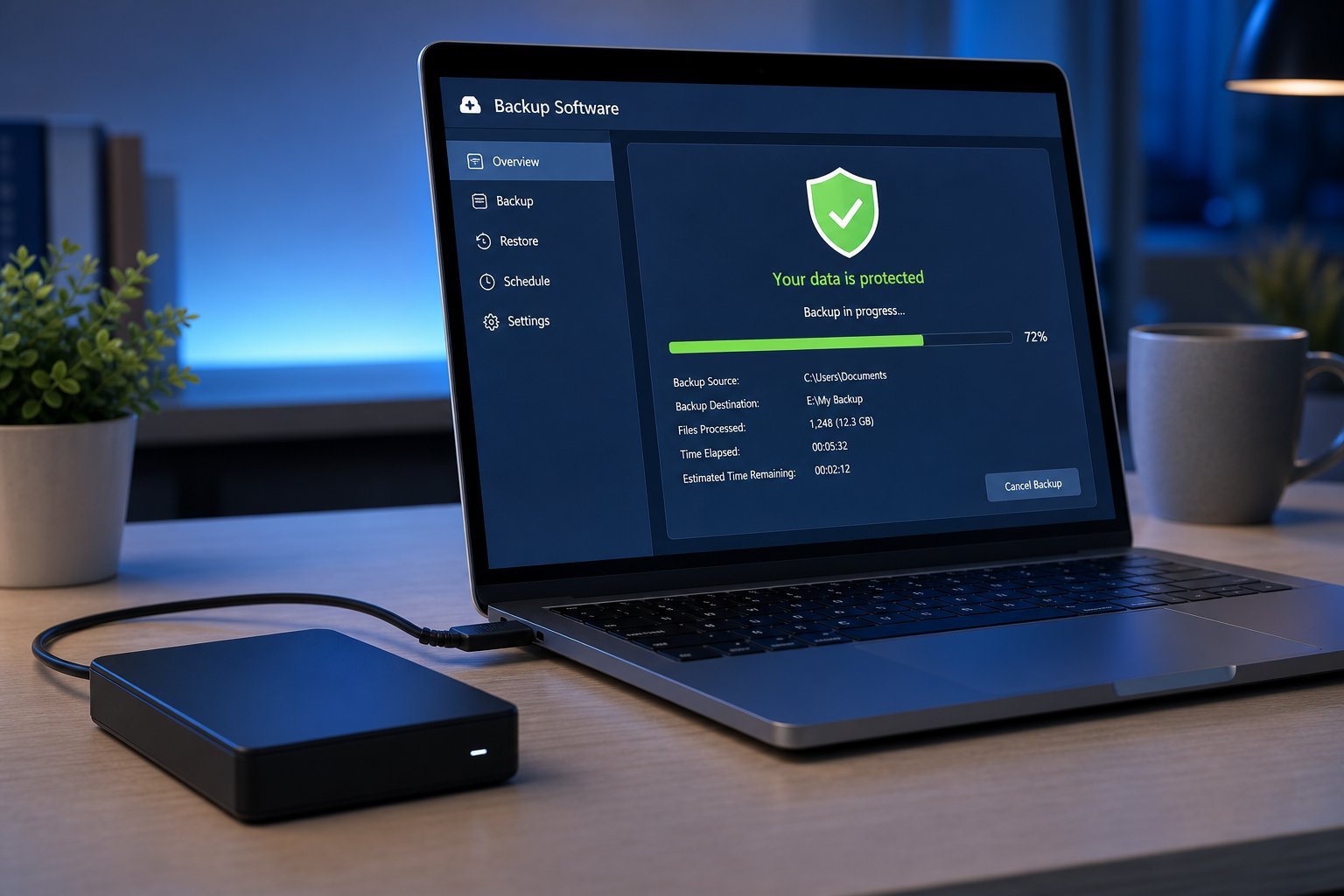
Back up your old computer. Make sure your old files are safe before moving on (see our backup guide).
Know your logins. Have your accounts and passwords ready.
Set aside time. Give yourself an afternoon, not a rushed hour.
Preparing your data, backup and logins before you start makes setup faster and less stressful.
Initial setup
Here's the initial setup process:
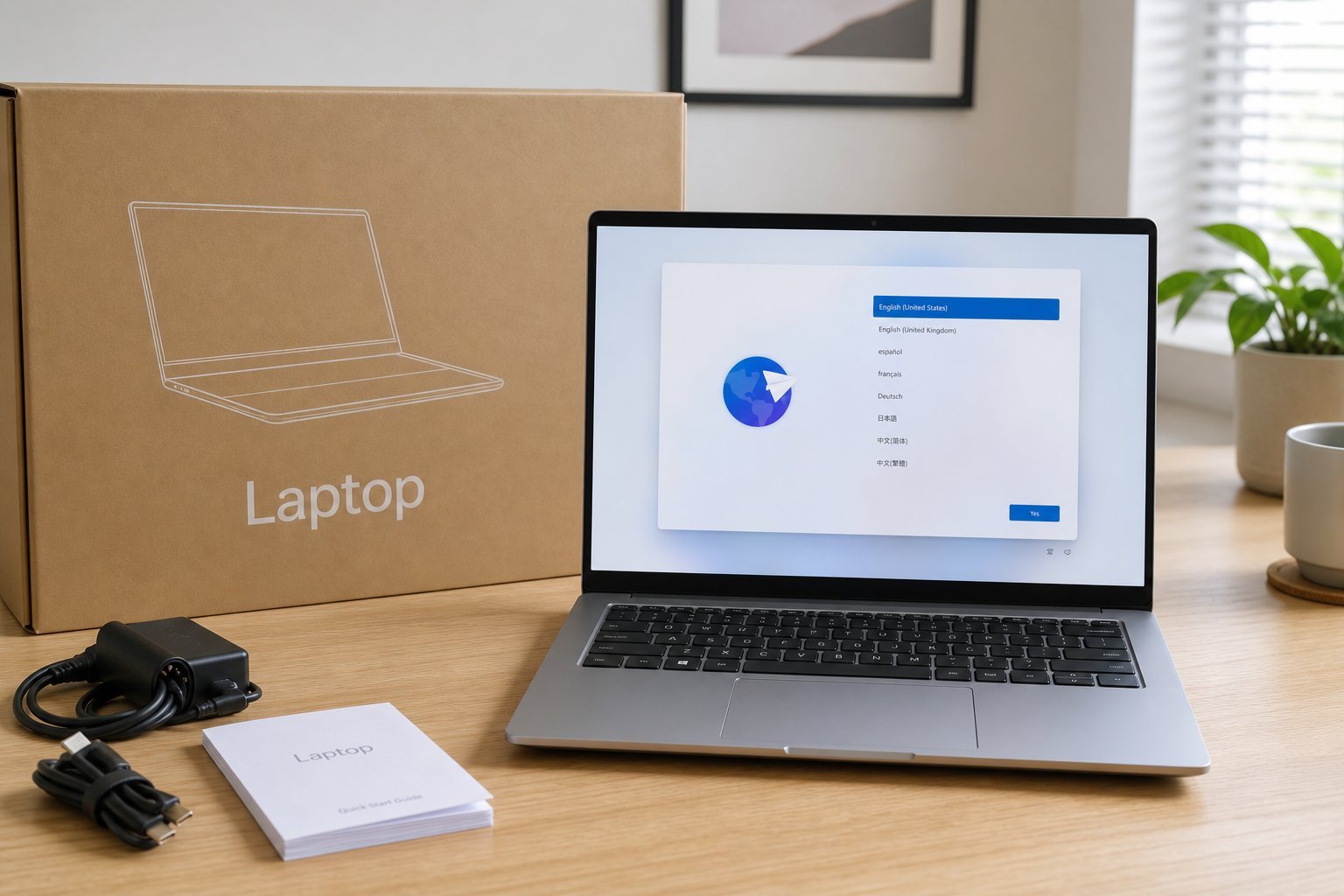
Connect power and turn it on. Follow the on-screen setup prompts.
Connect to the internet. Your home network (see our network guide).
Sign in to your account (Microsoft, Apple, Google).
Run all system updates. Get the computer fully up to date before installing anything (see our updates guide).
Set up your display and sound. Adjust resolution, brightness and audio.
Complete the initial setup, get updates installed, and configure the basics before adding your own software.
Secure it
Set up security before you start using it:
Enable the screen lock. PIN, password or biometrics.
Review privacy settings. Adjust what the OS collects to your comfort (see our privacy guide).
Set up your password manager. Install it and log in early (see our guide).
Enable automatic updates. So the computer stays secure (see our updates guide).
Secure your accounts with 2FA (see our 2FA guide).
Setting up security first means your new computer is protected from the start — lock, privacy settings, password manager, updates and 2FA.
Organize & install
Now add your software and organize:
Install your essential apps. Browser, office suite, communication apps (see our productivity guide).
Transfer your files. Move over the documents and files you need (see our transfer guide).
Set up cloud storage. Connect your cloud accounts so files are accessible (see our cloud guide).
Organize your folders. Set up a simple file system (see our organizing guide).
Personalize. Set your wallpaper, theme and shortcuts to your liking.
✨ Install in order of importance
Install your most important apps first, then transfer files, then personalize. Don't feel pressured to install everything at once — set up what you need to be productive, and add the rest as you go. A clean, uncluttered new computer is a joy to use.
📌 Bottom line
Set up a new computer properly by preparing first (back up, gather logins), completing the initial setup (connect, sign in, update), securing it early (lock, privacy, password manager, updates, 2FA), then installing your essential apps, transferring files, setting up cloud storage and organizing your folders. Install in order of importance and don't clutter it with everything at once. A little planning gives you a clean, secure, ready-to-work computer.
#new-computer#setup#security#organize#install
MT
Michael Torres
PC performance writer
Part of the HighTechBee editorial team. Michael Torres writes practical, beginner-friendly tech guides that solve real everyday problems.