๐Ÿ HighTechBee โ€” practical tech help, in plain English.
โœ๏ธ Write for us ๐Ÿ“ฉ Contact โ˜€๏ธ โ— Updated daily

Fix Common Phone Problems: Charging, Wi-Fi, Crashes & Freezes

AJ
Amara JohnsonSmartphone expert ยท HighTechBee Editorial
Fix Common Phone Problems: Charging, Wi-Fi, Crashes & Freezes

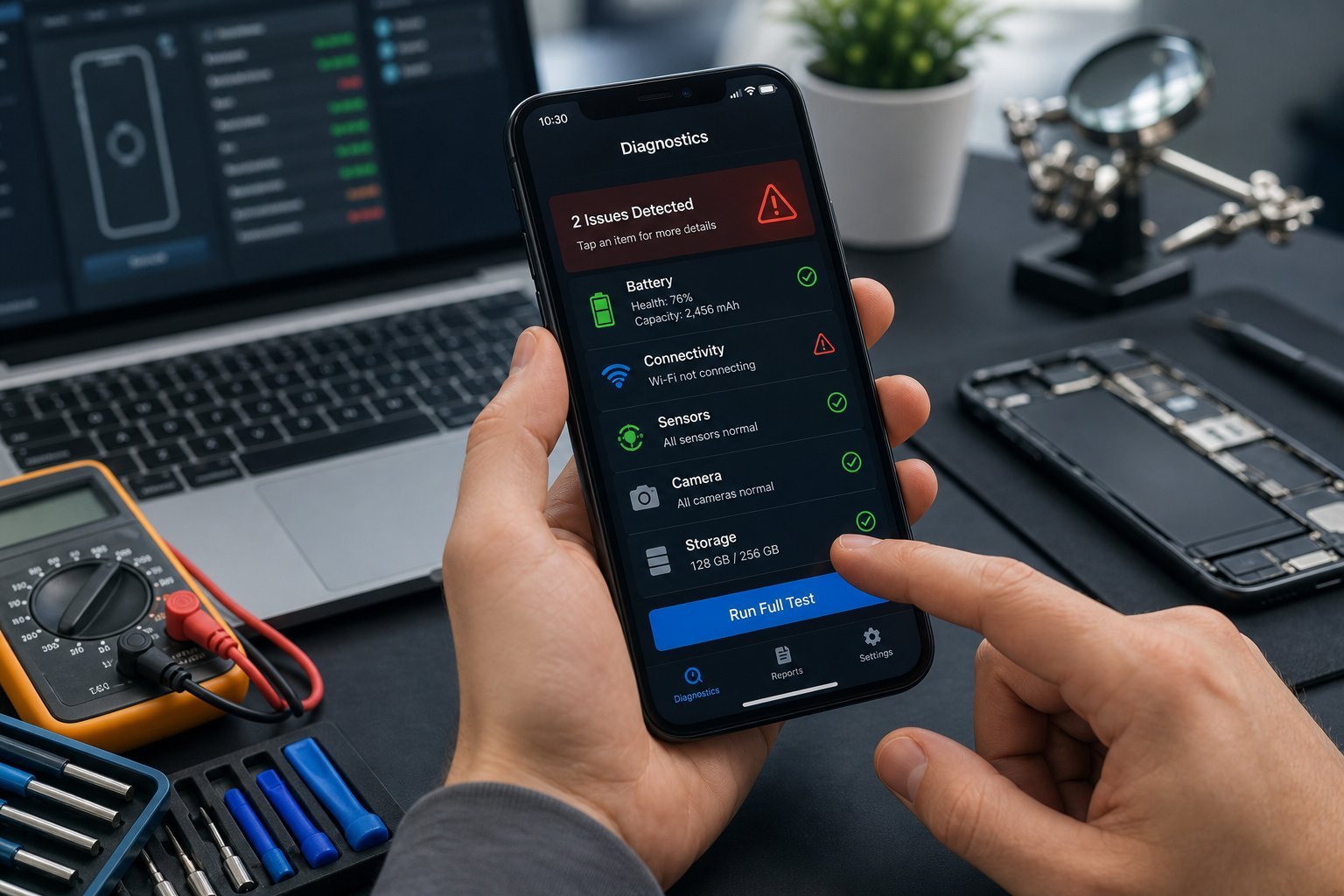
Phones are reliable โ€” but they have a few common problems that show up again and again: won't charge, won't connect to Wi-Fi, apps crashing, the screen freezing. Most of these are fixable yourself, often in minutes. Knowing the common problems and their fixes saves you a trip to a repair shop.

We've covered slow phones and battery drain; this guide covers the other common phone problems and how to fix them.

Phone won't charge

If your phone isn't charging, try these in order:

  • Check the cable and charger. Try a different cable and charger โ€” cables fail often.
  • Clean the charging port. Lint and dust can block the connection. Gently clean it (carefully โ€” don't damage the port).
  • Check for damage. A bent or damaged port needs professional repair.
  • Restart the phone. A glitch can stop charging.
  • Try wireless charging if available, to rule out a port issue.
  • Most "won't charge" issues are a bad cable or a blocked port. Try a new cable, clean the port, restart, and if it persists, the port may need repair.

    Phone won't connect

    If your phone won't connect to Wi-Fi:

  • Restart the phone. Clears many connection glitches (see our Wi-Fi guide).
  • Forget and reconnect. Forget the network and re-enter the password.
  • Check the password. Make sure you're entering the right one.
  • Restart the router. A proper power cycle helps (see our guide).
  • Check airplane mode. Make sure it's off.
  • Phone Wi-Fi issues usually resolve with a restart or forget-and-reconnect. If not, check the router (see our Wi-Fi guide).

    Apps crashing

    If apps keep crashing, try these:

  • Restart the phone. Clears memory issues (see our guide).
  • Update the app. An outdated app can crash (see our updates guide).
  • Clear the app's cache/data. Often fixes app problems (see our guide).
  • Update the OS. OS updates fix compatibility issues.
  • Reinstall the app. If nothing else works, uninstall and reinstall.
  • App crashes usually resolve with a restart, update, clearing cache, or a reinstall. Work through these in order.

    Screen freezes

    If your screen freezes or becomes unresponsive:

  • Force-restart the phone. Most phones have a button combo to force a restart โ€” this fixes a frozen screen.
  • Check for low storage. A full phone can freeze (see our storage guide).
  • Update the OS. Updates fix glitches (see our guide).
  • Watch for overheating. Heat can cause freezes (see our overheating guide).
  • If it keeps freezing, it may be a hardware issue needing repair.
  • โœจ The force-restart trick

    When a phone freezes, a force-restart (holding the power button, often with a volume button) usually fixes it โ€” it's a hard reboot that clears the freeze. Check your phone's method online. It's the #1 fix for a frozen screen. If freezes keep happening, address storage, updates and overheating.

    ๐Ÿ“Œ Bottom line

    Common phone problems are usually fixable. Won't charge โ†’ try a new cable, clean the port, restart. Won't connect โ†’ restart, forget-and-reconnect, check the router. Apps crashing โ†’ restart, update, clear cache, reinstall. Screen freezing โ†’ force-restart, check storage/updates/overheating. Work through these simple fixes before calling a repair shop โ€” most phone problems resolve in minutes.

    #phone#troubleshooting#charging#crashes#freeze
    AJ

    Amara Johnson

    Smartphone expert

    Part of the HighTechBee editorial team. Amara Johnson writes practical, beginner-friendly tech guides that solve real everyday problems.